About Innovation Hub
 Global Content Pulse (Webinars)


 Global Production Financing
(Webinars)
Global Production Financing
(Webinars)  LeaderSpeak Podcast
  Global Entertainment Digest (Newsletter)
  About Vitrina
 About VIQI
 Our Story
 Our Solutions 🔥
 Film+TV Projects Tracker 🚀
 Case Studies
 Our Profile
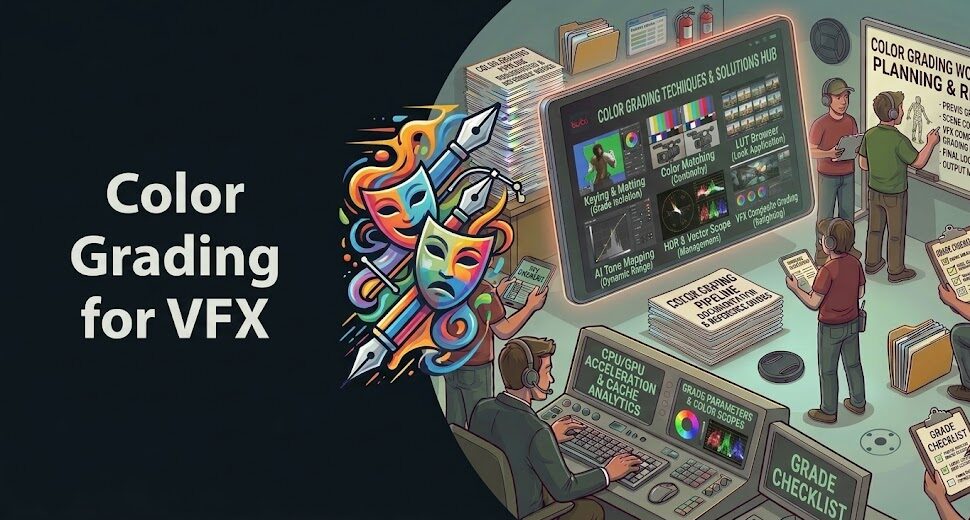
You’ve done everything right. The camera solve is locked. The lighting is matched. The shadows are falling correctly. And yet—something still feels off. The VFX element sits in the frame like it’s from a different film. Nine times out of ten, that feeling traces directly to color grading. Not to simulation quality. Not to render settings. To the gap between the color character of your rendered CG and the color character of the plate it’s supposed to live inside.
Color grading techniques to match VFX elements to live action footage are what close that gap—and they’re among the most transferable skills in a compositor’s toolkit. Every shot has a different color problem, but the diagnostic process and the correction toolset are consistent. Studios like Framestore, DNEG, and PhantomFX apply these same principles on productions for Netflix, Warner Bros, and Paramount—whether the element being matched is a CG vehicle, a creature, or a full digital environment replacement.
This guide covers the complete color matching workflow—from linear light fundamentals through LUT application, curve matching, highlight rolloff, and ambient occlusion tinting—with specific techniques for DaVinci Resolve and Nuke. If your VFX work is technically solid but your composites still read as digital, the answer is in here.
Table of Contents
- Why Color Mismatch Happens Even When Lighting Looks Correct
- Linear Light: The Foundation You Can’t Skip
- LUT Application and Plate Color Space Matching
- Curve Matching: Shadows, Midtones, and Highlights
- Highlight Rolloff, Saturation Falloff, and the Film Curve
- Ambient Occlusion Tinting and Environment Color Bleed
- Specific Workflows in DaVinci Resolve and Nuke
- FAQ
- Conclusion
Ask VIQI: Which Compositing Studios Have Delivered Color-Critical VFX Integration for Your Genre?
VIQI is Vitrina’s AI assistant—trained on 1.6 million titles, 360,000 companies, and 5 million entertainment professionals. Ask it which studios specialize in photorealistic compositing and color-matched VFX at your budget.
✓ Included with 200 free credits | ✓ No credit card needed
Why Color Mismatch Happens Even When Lighting Looks Correct
Here’s the real dynamic most compositors hit before they understand it: your lighting can be directionally correct, your shadows can be falling at the right angle, and your HDR reference can be plugged into the render—and the shot still reads as two separate images. That’s because color matching and lighting matching are related but distinct problems. Lighting tells the VFX element where the light is coming from. Color grading tells it what camera, what film stock, and what DI the plate went through to get there.
Live action footage has color character baked in from multiple stages: the camera’s log encoding, the on-set CDL (Color Decision List) applied by the DIT, any temp grade the colorist applied during editorial, and ultimately the final DI that determines the project’s look. Your CG render starts from neutral linear light with none of this history. The job of color matching in comp is to give your CG element the same history—not by reproducing every stage, but by approximating the cumulative result of all of them in a way that makes the plate and the element feel like they were photographed with the same camera on the same day.
The failure modes divide into three categories. Contrast mismatch—your CG has a linear response curve; the plate has a filmic S-curve with lifted blacks and rolled highlights. Color temperature drift—your render is neutral white; the plate has a 5,600K daylight bias or a warm tungsten push from the DIT’s CDL. Saturation structure mismatch—your CG saturates evenly across the tonal range; the plate loses saturation in highlights and shadows in the way film stocks do. Any one of these makes the composite visible. All three together—which is the default state of an ungraded CG render—makes it obvious.
Linear Light: The Foundation You Can’t Skip
Before any color matching technique is useful, you need to be working in linear light. This is non-negotiable—not a preference. Linear light means that pixel values in your compositing pipeline correspond proportionally to physical light intensity: twice the value means twice the light. It’s how your renderer calculates everything. It’s how real light actually behaves. And it’s the only color space in which operations like blending, color multiplication, and exposure adjustment produce physically correct results.
But your camera plate isn’t in linear light. Cameras encode footage logarithmically—log curves like ARRI LogC, RED Log3G10, Sony S-Log3, or the Rec.709 gamma curve compress the highlight and shadow information into a form that’s efficient for storage and that matches human perception better than linear encoding does. The moment you blend your linear CG render over a log-encoded plate without converting one of them, you’re mixing apples and oranges. The math is wrong. The result looks wrong.
The correct workflow: convert your plate to linear before compositing, do all your work in linear space, then apply the output transform (the LUT or color space conversion that gets you back to the delivery color space) at the very end of your node tree as a single, consistent operation. This workflow applies in both Nuke—where the OpenColorIO (OCIO) framework handles color space conversions as first-class operations—and in DaVinci Resolve, where your Color Science setting defines the working space for the entire project. Set it correctly at project setup, not as an afterthought when something looks wrong.
LUT Application and Plate Color Space Matching
A Look Up Table (LUT) is a pre-calculated color transformation—a mapping from input color values to output color values that encodes a specific look, color space conversion, or both simultaneously. In VFX color matching, LUTs do two distinct jobs: technical conversion (transforming between color spaces, like ARRI LogC to linear) and creative look application (applying the DI’s creative grade to your CG render to make it match the plate’s established look).
The most efficient workflow is to obtain the project’s show LUT from the DI facility or the DIT’s color package and apply it to your CG renders before final delivery. This LUT encodes the project’s entire color pipeline in one operation—the camera conversion, the colorist’s adjustments, and the delivery transform. Apply it to your CG elements before compositing them against the graded plate, and you’re starting from a much closer baseline than an ungraded render gives you.
But here’s what gets overlooked constantly: LUTs are not magic equalizers. A show LUT transforms your input correctly only if the input is in the color space the LUT expects. Apply an ARRI LogC-to-look LUT to a linear CG render and you’ll get a broken result—because linear values aren’t what the LUT’s input was calibrated for. Always convert your CG render to the LUT’s expected input color space first. Most production pipelines manage this through OCIO configurations that make these conversions explicit and verifiable, which is why OCIO adoption has become essentially universal across major VFX facilities over the last decade.
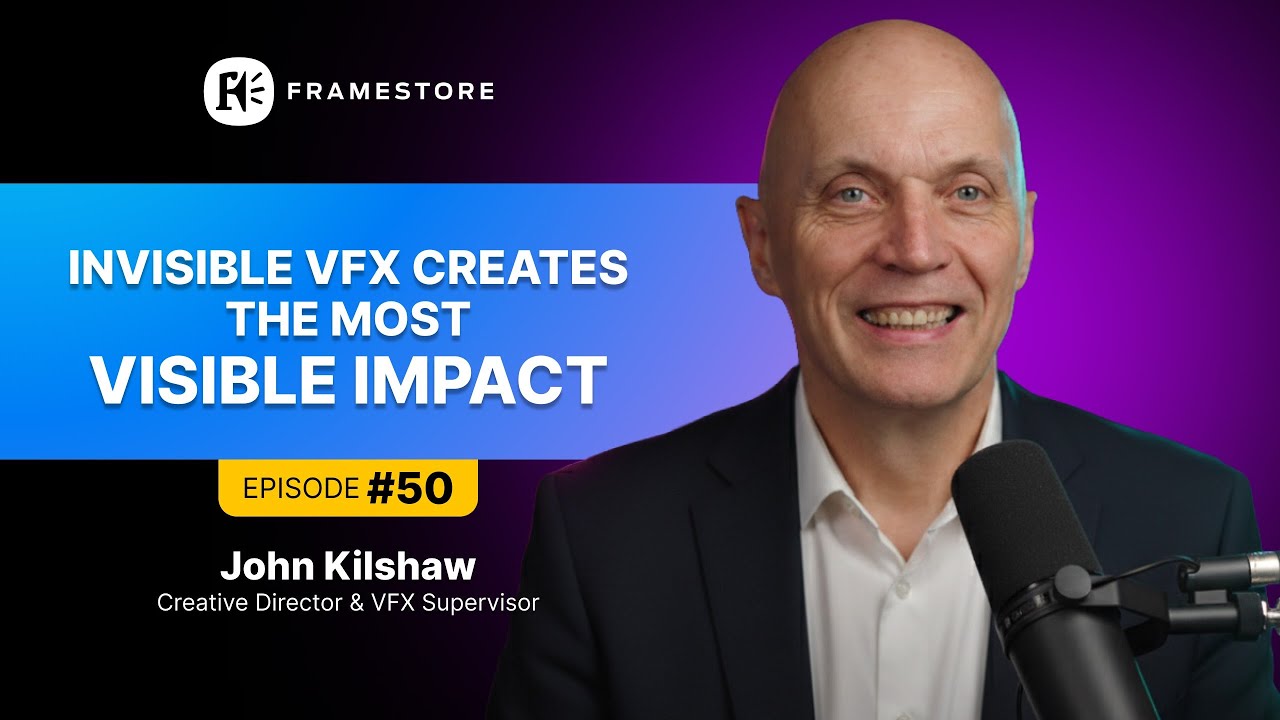
John Kilshaw (Creative Director & VFX Supervisor, Framestore) dives deep into the modern VFX landscape—including the color pipeline discipline, cross-studio collaboration, and the compositing standards required when delivering for Netflix at episodic scale:
Curve Matching: Shadows, Midtones, and Highlights
Even with a correct LUT applied and linear-space compositing established, your CG render will often still feel wrong. The reason is that your renderer produces a mathematically precise response curve while the plate reflects the response of a real camera—which is never mathematically perfect, always varies by unit and conditions, and carries the additional character of the DIT’s CDL and the colorist’s corrections. Curve matching is where you manually close this remaining gap.
The Three-Region Approach
Effective curve matching works by splitting the tonal range into three independent regions and evaluating each separately. Don’t try to fix everything with a single overall brightness adjustment—that never works. Work in three passes.
Shadows: Compare the darkest regions of your CG element against dark areas in the plate. Real camera footage, especially from log cameras, has lifted blacks—shadow values that don’t go all the way to zero, producing a characteristic “milky” shadow quality that linear renders lack. In Nuke, a mild Grade node with the blacks lifted slightly across all three channels (RGB independently if needed) addresses this. In DaVinci Resolve, the lift control in the Color Wheels or a custom curve applied to the low end of the luminance range achieves the same result.
Midtones: This is where skin tones, foliage, and most of the visible world lives. Compare a neutral, mid-grey surface in your CG element against a comparable neutral in the plate—ideally a grey card if one was shot on set, or a practical neutral-colored object visible in frame. The midtone relationship tells you about overall gamma offset and color temperature drift between your render and the plate. A subtle warm push in the midtones (raising the red and green channels slightly relative to blue) is the most common correction needed on daylight exterior plates; a cooler push is more common on indoor scenes with mixed lighting.
Highlights: The treatment of your brightest values is where the illusion most frequently breaks down. Real cameras—especially film emulsions and log-encoded digital cameras—have a gradual highlight rolloff that prevents pure white. Your linear renderer has no such behavior unless you apply one explicitly. See the next section for the full highlight rolloff treatment. But in the curve pass, adjust your highlight curve to prevent hard clipping and start the transition toward the rolled shoulder in the upper 20–30% of your luminance range.
Find the World’s Top Compositing and Color-Matching VFX Studios on Vitrina
Trusted by Netflix, Warner Bros, and Paramount. Search lighting and shading VFX specialists with verified color integration credits across 140,000+ companies worldwide.
✓ 200 free credits | ✓ No credit card required | ✓ Full platform access
Highlight Rolloff, Saturation Falloff, and the Film Curve
Of all the color matching issues that separate professional compositing from amateur work, the handling of highlights is the most visually diagnostic. Look at a frame from any film or high-end television production and you’ll see it: bright areas—sky, windows, highlights on skin, specular reflections—roll off gradually toward white rather than clipping hard. This is the highlight shoulder—the S-curve characteristic of film emulsions and the analog-derived curves that DPs and colorists apply to digital footage to preserve that quality.
Your CG render in linear light has no such shoulder. It clips sharply at whatever your maximum output value is. The transition from “barely below clipping” to “fully clipped white” is a single pixel wide. And that hard clip is one of the most immediately readable signals of digital rendering—even to non-technical viewers who’ve never heard the term “highlight rolloff.” They feel it as sterility. Clinical. Fake.
Applying a Highlight Shoulder in Nuke and DaVinci Resolve
In Nuke, the cleanest approach is a custom ColorLookup node with an S-curve that starts compressing values at roughly 70–80% of your output maximum and asymptotically approaches—but never reaches—pure white. Shape the shoulder to match the plate’s characteristic by sampling specular highlights visible in both the plate and your CG element and comparing them directly.
In DaVinci Resolve, the same treatment lives in the Custom Curves panel—specifically adjusting the upper portion of the luminance curve and, if needed, individual channel highlight curves to match the plate’s behavior. Resolve’s Highlight Recovery controls in the RAW tab (for applicable camera formats) can handle some of this automatically, but manual curve shaping gives you more precise control over the shape of the shoulder.
Saturation Falloff: Why CG Looks Too Vivid
Saturation falloff is the second highlight-range issue. Film and digital cameras both desaturate toward white in bright areas—colors in highlights look washed out and pale because the sensor or emulsion is being overdriven toward maximum output in all three channels simultaneously. Your CG render, by default, does not do this—it can produce fully saturated colors all the way up to peak white, which is physically implausible and visually reads as digital vividity.
The fix: apply a hue/saturation curve keyed to luminance—reducing saturation progressively in the upper 30–40% of the luminance range. In Nuke, a HueCorrect node driven by a luminance mask achieves this precisely. In DaVinci Resolve, the Custom Curves panel’s saturation-versus-luminance curve does the same job. Apply this globally across the CG element, then dial back the strength until the element’s highlight colors match the plate’s equivalent highlight desaturation. Don’t chase exact match—chase feel. Overshooting this correction makes highlights look muddy rather than filmic.

Your AI Assistant, Agent, and Analyst for the Business of Entertainment
VIQI AI helps you plan content acquisitions, raise production financing, and find and connect with the right partners worldwide.
- Find active co-producers and financiers for scripted projects
- Find equity and gap financing companies in North America
- Find top film financiers in Europe
- Find production houses that can co-produce or finance unscripted series
- I am looking for production partners for a YA drama set in Brazil
- I am looking for producers with proven track record in mid-budget features
- I am looking for Turkish distributors with successful international sales
- I am looking for OTT platforms actively acquiring finished series for the LATAM region
- I am seeking localization companies offer subtitling services in multiple Asian languages
- I am seeking partners in animation production for children's content
- I am seeking USA based post-production companies with sound facilities
- I am seeking VFX partners to composite background images and AI generated content
- Show me recent drama projects available for pre-buy
- Show me Japanese Anime Distributors
- Show me true-crime buyers from Asia
- Show me documentary pre-buyers
- List the top commissioners at the BBC
- List the post-production and VFX decision-makers at Netflix
- List the development leaders at Sony Pictures
- List the scripted programming heads at HBO
- Who is backing animation projects in Europe right now
- Who is Netflix’s top production partners for Sports Docs
- Who is Commissioning factual content in the NORDICS
- Who is acquiring unscripted formats for the North American market
Ambient Occlusion Tinting and Environment Color Bleed
Here’s what most color matching guides don’t tell you: the shadows on your CG element aren’t supposed to be neutral grey. They’re colored—by the environment that’s bouncing light into them. An exterior shot has blue sky bouncing into shadows, giving them a blue-violet cast. An interior with warm walls has orange bounce coloring the dark regions. A forest has green-filtered light turning shadows toward green. Your CG renderer uses the HDRI you captured on set to approximate this—but the shadow and occlusion regions often need additional tinting in composite to fully match the plate’s shadow color structure.
Ambient occlusion tinting is the technique of adding environment color specifically to your AO pass in composite—multiplying the occlusion layer by a tinted version of the dominant environment color rather than using a neutral grey or black. On a blue-sky exterior, your occlusion pass multiplied against a desaturated blue (around 60% brightness, 30% saturation) produces shadows with the characteristic cool-blue quality of real outdoor shade. On a warm tungsten interior, the same occlusion multiplied against a warm amber gives you shadows that read as lit by the same warm environment as everything else in the plate.
Color bleed is the related phenomenon—nearby colored surfaces casting tinted light onto your CG element. A subject standing near a red wall will have a warm reddish spill across the surfaces facing that wall. Your CG renderer captures this if your HDRI and environment geometry are set up correctly, but it’s frequently under-represented because on-set reference photos don’t fully capture every colored surface near camera. In composite, add a subtle color bleed layer—a color-shifted, blurred version of the nearest significant colored surface in the plate—as a low-opacity multiply over the edge regions of your CG element that would physically face that surface. The result is environment integration that feels observational rather than theoretical.
Specific Workflows in DaVinci Resolve and Nuke
The techniques above apply in any color-capable tool—but the implementation paths in DaVinci Resolve and Nuke are different enough to walk through specifically, since these two tools cover the vast majority of professional color matching workflows on productions of all scales.
DaVinci Resolve: Color Matching for Composited Deliveries
DaVinci Resolve is the industry’s dominant color grading platform—used by colorists at major productions from Paramount to independent features—and it’s increasingly used for compositing color work through its Fusion integration. The workflow that saves the most time for matching CG to plate in Resolve: use Color Match (the automatic matching tool in the Color page) as a starting point, then manually refine with the Custom Curves and the Hue vs. Saturation and Hue vs. Luminance controls in the Curves panel.
Resolve’s Qualifier tool lets you isolate specific color ranges for targeted corrections—invaluable when your CG element has shadow regions that need different treatment from midtones without wanting to set hard matte boundaries. Layer up your corrections in order: color space conversion first, then LUT application, then global curve adjustment, then targeted qualifier-based corrections for any remaining regional mismatches. This non-destructive stack lets you go back and adjust any layer without destroying downstream work—which you will need to do when the client sees the first review pass and asks for the shadows to be warmer.
Nuke: The Compositor’s Color Matching Node Tree
In Nuke, a structured color matching node tree follows a consistent anatomy. Starting from your CG render in linear light, the node order that produces the most controllable result:
- OCIOColorSpace node: Convert from scene-linear to the plate’s log color space so all subsequent adjustments happen in matching color space.
- Grade node (shadows): Lift blacks to match the plate’s shadow floor. Isolate using the black point and shadow range controls.
- Grade node (color temperature): Address overall color temperature drift—typically a subtle push in R/G/B independently based on sampling the neutral grey regions of both the plate and the CG element.
- ColorLookup node (highlight shoulder): Apply the S-curve highlight rolloff with gradual shoulder starting at 75–80% luminance.
- HueCorrect node (saturation falloff): Drive saturation reduction in highlights using the luminance-vs-saturation channel of the HueCorrect node.
- OCIOColorSpace node: Convert back to linear for compositing operations downstream.
Keep this entire color matching stack as its own grouped node set—named, labeled, and collapsible. When you need to adjust any single element of the color match (which you will, every review), you want to get to that specific node without digging through a flat node tree. Professional Nuke pipelines on productions delivering to Netflix and Warner Bros enforce node tree organization standards precisely because color corrections on 200-shot sequences are iterative by definition. Find your node fast or spend three minutes per shot just navigating. Across an episodic schedule, that’s days. Explore the latest VFX technology trends that are reshaping how compositors approach color pipeline work at scale.
Need a VFX Studio With Proven Color Pipeline Discipline? Vitrina Concierge Will Find One.
Vitrina Concierge is your Virtual Agent. We don’t hand you a directory—we make warm introductions to compositing studios actively taking projects at your timeline and budget.
- LA producer → Netflix UK, Fifth Season, Fox Entertainment (48 hours)
- Korean animation studio → Netflix Adult Animation (week one)
- Middle Eastern studio → Legendary Pictures (direct access)
Frequently Asked Questions
What are the most effective color grading techniques to match VFX elements to live action footage?
The most effective approach combines five techniques in order: establishing a linear light workflow, applying the project’s show LUT to convert your CG into the plate’s color space, curve matching the shadows, midtones, and highlights independently, adding highlight rolloff and saturation falloff to match the plate’s filmic response, and tinting the ambient occlusion pass with environment color to match the shadow hue of the plate. Each technique closes a specific gap—no single correction covers all of them.
Why does my VFX element look too bright and vivid compared to the live action plate?
The most likely cause is missing highlight rolloff and saturation falloff. Linear CG renders produce fully saturated colors that clip sharply at maximum output. Real footage has a filmic S-curve that compresses highlights gradually and desaturates colors in the bright range. Apply a custom S-curve highlight shoulder to your CG render in Nuke or DaVinci Resolve, then use a luminance-keyed saturation reduction in the upper 30–40% of the tonal range. That combination addresses the “too vivid, too digital” quality that makes CG look pasted rather than embedded.
What is a show LUT and how do I use it for VFX color matching?
A show LUT is a Look Up Table that encodes the project’s color pipeline—camera conversion, DIT CDL, and colorist grade—in a single file. Applying it to your CG render gives that element the same color history as the plate, dramatically reducing the manual matching work required. Obtain it from the DIT or DI facility at the start of the project. Before applying, ensure your CG render is in the color space the LUT expects as input—applying a LUT to the wrong input color space produces broken results. In Nuke, manage this through OCIO. In DaVinci Resolve, confirm your project color science settings match the LUT’s designed workflow.
What is linear light and why does it matter for VFX compositing?
Linear light is a color space where pixel values are proportional to physical light intensity—double the value means double the light. It’s how renderers calculate illumination and how operations like exposure adjustment and color blending produce physically correct results. Camera footage is encoded logarithmically, not linearly. Compositing VFX in non-linear color spaces produces mathematically incorrect blending, wrong exposure calculations, and color errors that can’t be fully corrected afterward. Convert all plates to linear before compositing, work in linear throughout, and apply the output transform at the end as a single operation.
What is ambient occlusion tinting and when should I use it for color matching?
Ambient occlusion tinting means coloring your AO pass with the dominant environment color rather than leaving it neutral grey or black. Real shadows are never neutral—they pick up the color of the surrounding environment that’s bouncing light into them. Blue sky tints outdoor shadows cool. Warm interior walls cast orange into shadows. Multiplying your occlusion pass against a desaturated version of the environment’s dominant bounce color makes shadow regions on your CG element match the shadow quality in the plate. Use it whenever your CG shadows look too neutral or too dark compared to the plate’s shadow regions.
How do I color match VFX elements in DaVinci Resolve?
In DaVinci Resolve, use the Color Match tool as a starting point, then refine with Custom Curves for highlight shoulder and shadow lift, and the Hue vs. Saturation and Hue vs. Luminance curves for saturation falloff and color temperature correction. Use Qualifiers to isolate shadow and highlight regions for targeted adjustments without hard matte edges. Stack your corrections non-destructively—color space conversion first, then LUT application, then global curve work, then qualifier-based regional adjustments—so each layer is independently accessible for iteration.
What is the correct node order in Nuke for color matching VFX to a live action plate?
The standard node order is: OCIOColorSpace (convert CG from scene-linear to plate log space), Grade node (shadow lift and black point matching), Grade node (color temperature correction per channel), ColorLookup node (highlight shoulder S-curve), HueCorrect node (luminance-driven saturation falloff), OCIOColorSpace (convert back to linear for downstream compositing operations). Keep this stack in a labeled group node for easy access during review iterations. Apply the output transform—show LUT or OCIO display transform—as a viewer transform, not baked into the comp tree, until final delivery.
How do I match VFX element color temperature to the live action plate?
Sample a neutral grey or near-neutral surface visible in both the CG element and the plate—the same type of material if possible. Compare the RGB values at that sample point in the CG against the plate. If the CG reads more blue in the neutral region, the element is cooler than the plate and needs warming: raise the red and green channels slightly or reduce blue. If it reads more orange-yellow, it needs cooling. Apply this correction as a per-channel Grade adjustment in Nuke or a per-channel lift/gamma offset in DaVinci Resolve, targeting the midtone range specifically to avoid affecting your shadow and highlight work.
Conclusion: Color Matching Is a Checklist, Not an Instinct
The reason VFX color matching feels like a dark art to many compositors is that it looks like a single judgment call—”does this match?”—when it’s actually a sequence of distinct, addressable technical problems. Color grading techniques to match VFX elements to live action footage work best when treated as a checklist: linear light established, color space conversions correct, shadow blacks lifted, midtone temperature calibrated, highlight shoulder applied, saturation falloff dialed, occlusion pass tinted. Handle each step in sequence and the cumulative result is an element that belongs in the plate—not one that’s merely nearby it.
Key Takeaways:
- Linear light is not optional: Compositing in non-linear color spaces produces mathematically wrong blending results. Establish your linear pipeline first—everything else depends on it.
- Get the show LUT early: Applying the project’s color pipeline to your CG as early as possible—before detailed manual correction—reduces the gap you’re trying to close in composite by 60–70%.
- Highlights are the first thing viewers clock: A graduated S-curve shoulder plus luminance-keyed saturation falloff in the top 30–40% of the tonal range eliminates the most common “digital vividity” problem in CG integration.
- Shadows are colored, not neutral: Ambient occlusion tinting with environment color closes the gap between correct lighting and believable integration in the shadow regions where differences are most visible.
- Node tree organization compounds over a show: A labeled, grouped color matching stack that’s iteratable in 30 seconds per shot is worth more than a technically superior stack that takes 3 minutes to navigate on every review pass.
Studios delivering color-critical compositing at volume for Netflix, Warner Bros, and Paramount—including Framestore and DNEG—apply this kind of systematic approach because inconsistency across hundreds of shots in an episodic pipeline isn’t recoverable in the DI. Do the work in comp. Own the color match before anyone else has to touch it.
Find Compositing and Color-Pipeline VFX Specialists—Before Your Delivery Window Closes
Trusted by Netflix, Warner Bros, Paramount, and Google TV. Track 400,000+ projects. Access 3 million verified executives. Search photorealism VFX specialists and on-set VFX supervisors with verified color pipeline credits.
✓ 200 free credits | ✓ No credit card required | ✓ Cancel anytime
<!–
Find Film+TV Projects, Partners, and Deals – Fast.
VIQI matches you with the right financiers, producers, streamers, and buyers – globally.
Producers Seeking Financing & Partnerships?
Book Your Free Concierge Outreach Consultation
(To know more about Vitrina Concierge Outreach Solutions click here)
Join Industry Briefings Trusted by Leaders

The Mid-Budget Comeback: Why Mid-Budget Films Is the Smartest Bet in the Room
Mid-budget films are attracting new capital. See why this segment is becoming one of the strongest bets in Film today.
Franchise Fatigue vs. IP Dependency: What Studios Should Be Betting On Now
s franchise performance softens, where will the next generation of valuable IP come from? Join the briefing.

Unscripted Is Eating the World: The Multi-Billion Reality and Format Boom
Unscripted is the new prestige — inside the $19.8B global format boom reshaping how streaming platforms compete.

How Co-Productions and Regional IP Are Reshaping Global Drama
As global drama evolves, which stories travel, which stay local, and how are they getting financed?