About Innovation Hub
 Global Content Pulse (Webinars)


 Global Production Financing
(Webinars)
Global Production Financing
(Webinars)  LeaderSpeak Podcast
  Global Entertainment Digest (Newsletter)
  About Vitrina
 About VIQI
 Our Story
 Our Solutions 🔥
 Film+TV Projects Tracker 🚀
 Case Studies
 Our Profile
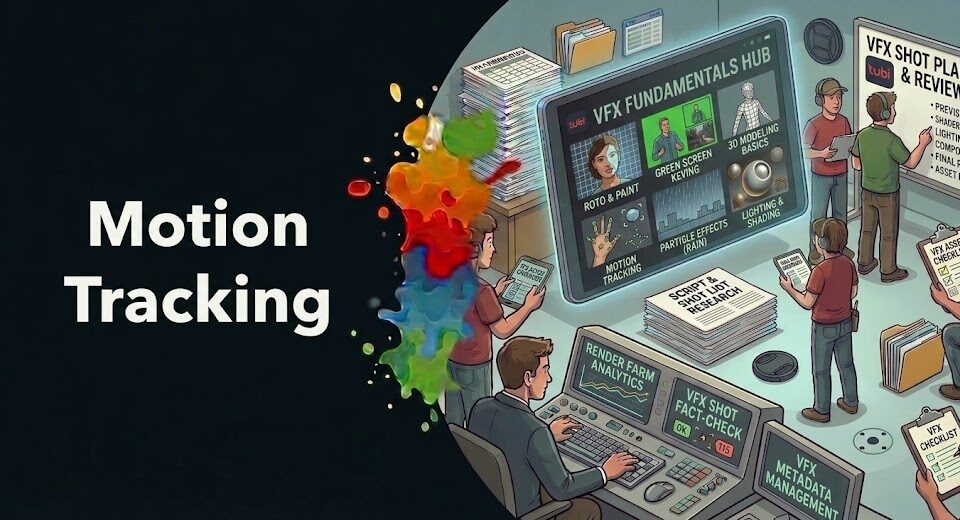
Handheld footage does something a locked-off camera can’t: it feels alive. That nervous, organic energy is why cinematographers from Roger Deakins to Emmanuel Lubezki have made handheld work central to their visual language—and why productions from Netflix originals to independent features increasingly shoot this way. But for VFX artists, that energy is a technical problem. Every camera movement, every drift, every micro-vibration must be precisely understood before a single digital element can be added.
Camera motion tracking for handheld footage is a distinct discipline from tracking locked-off or motion-controlled shots. The data is noisier, the solve is harder, and the margin for error is smaller—because an imperfect track on a moving camera announces itself immediately. This guide covers the most effective techniques for handling it: from planar tracking and 3D camera solves to manual track point strategy and stabilization workflows. The methods apply across After Effects, Nuke, Mocha Pro, SynthEyes, and Blender.
Table of Contents
- Why Handheld Footage Makes Tracking So Much Harder
- Track Point Selection: The Decision That Determines Everything
- Planar Tracking: The Most Reliable Approach for Handheld Shots
- 3D Camera Solving for Handheld Footage: Tools and Workflow
- Stabilize-Then-Add: When to Pre-Process Your Plate
- Manual Tracking and Keyframe Correction for Problem Shots
- Matching Motion Blur and Camera Shake to VFX Elements
- Tool-by-Tool Workflow: After Effects, Nuke, Mocha Pro, and Blender
- FAQ
- Conclusion
Ask VIQI: Which VFX Studios Are Producing Handheld-Heavy Productions Right Now?
VIQI is Vitrina’s AI assistant—trained on 1.6 million titles, 360,000 companies, and 5 million entertainment professionals. Ask it which studios and productions are actively sourcing motion tracking and match move expertise, what tool stacks appear in current briefs, and where tracking specialists are being placed globally.
✔ Included with 200 free credits | ✔ No credit card needed
Why Handheld Footage Makes Tracking So Much Harder
A locked-off camera has one degree of difficulty: the image doesn’t move. Tracking a VFX element onto static footage is largely a compositing problem—match the perspective, match the light, and you’re most of the way there. But a handheld camera introduces up to six degrees of freedom simultaneously: translation on three axes (left/right, up/down, forward/backward) and rotation on three axes (pan, tilt, roll). All of it happening at once, organically, with no clean mathematical model underlying it.
The specific challenges compound on top of each other. Motion blur smears track points across frames, making their precise position uncertain. Lens breathing (subtle focal length changes as the camera operator shifts their grip) introduces frame-to-frame scaling inconsistencies that automated trackers don’t handle cleanly. Rolling shutter—present in virtually every DSLR and mirrorless camera used for handheld production—creates a subtle wobbly distortion in the image that’s invisible to the naked eye but breaks tracker math. And the entire image moves more between frames than on a locked-off shot, giving point-based trackers less time per frame to make confident position predictions.
None of these are unsolvable. But solving them requires understanding them—which is what the techniques in this guide address directly. Our overview of VFX tracking in production covers how tracking integrates into the broader pipeline context, including the on-set data capture that makes handheld tracking significantly easier when it’s done right.
Track Point Selection: The Decision That Determines Everything
Before you run any tracking algorithm, the track points you select set the ceiling for what’s possible. Bad track point placement—features that are too small, too close together, in areas of repetitive texture, or on surfaces at different depths—produces solves that drift, jump, or fail entirely. And on handheld footage, where the frames are already challenging for automated trackers, bad track points compound the difficulty multiplicatively.
What makes a good track point? Four properties define it:
- High local contrast: The feature needs to be clearly distinguishable from its immediate surroundings. Corner features—where two edges meet—are ideal. Large uniform areas with gradual tonal variation are not.
- Consistent visibility: The feature must remain visible throughout the range of frames you’re tracking. A track point that disappears behind another object midway through the shot is useless; a track point on a surface that passes through a motion-blurred zone for three frames creates a gap that automated interpolation fills incorrectly.
- Correct depth plane: Track points on surfaces at different distances from the camera will move differently under parallax—the closer surface moves more relative to the background than the distant one. For 2D tracking, all track points need to be on the same depth plane as the surface you’re attaching your VFX element to. Mixing depth planes produces incorrect warp.
- Spatial distribution: Points clustered in one area of the frame produce a solve that’s accurate in that region and unreliable everywhere else. Distribute track points across the frame—including corners—to give the solver geometry that covers the full image plane.
On handheld footage, aim for a minimum of 8–12 well-distributed track points for a 2D solve, and 50–100+ points for a 3D camera solve. More isn’t always better if the extra points are on bad features—quality beats quantity, but you need enough distributed points to constrain the solution across the full frame.
Planar Tracking: The Most Reliable Approach for Handheld Shots
Planar tracking is the technique that makes most 2D VFX integration on handheld footage achievable with professional results—and it’s the technique that separates artists who handle difficult shots from those who don’t. Instead of tracking individual pixel-level features (as point trackers do), planar tracking analyzes the motion of an entire flat surface region from frame to frame, using that surface’s transformation—translation, rotation, scale, and shear—to drive a four-corner solve that describes the full perspective change of that plane.
The practical advantage on handheld footage: a planar region with decent texture gives the algorithm far more pixel information to work with than a point tracker’s small search window. It’s more resistant to motion blur because it averages across a region rather than relying on a single feature’s precise position. And it naturally handles the perspective distortion of surfaces that are at an angle to the camera—which almost all surfaces in a real scene are.
Mocha Pro (from Boris FX) is the industry-standard planar tracking application—used by DNEG, Framestore, ILM, and virtually every professional VFX pipeline. Its underlying algorithm, developed by Peter Gatiens and refined over two decades, remains more robust on difficult handheld footage than any built-in tracker in After Effects or Premiere. For screen replacements, sign replacements, face tracking, and any 2D element that needs to follow a real surface through handheld camera movement, Mocha Pro is the correct tool.
Mocha is also bundled into After Effects as Mocha AE—a feature-limited version that handles most 2D planar tracking tasks. For professional productions requiring corner-pin exports to Nuke or complex mesh warps, the full Mocha Pro provides the necessary output formats. The conceptual workflow is identical; the output flexibility differs.
Track Which Productions Are Sourcing VFX and Match Move Artists—Before the Brief Circulates
Trusted by Netflix, Warner Bros, and Paramount. Join 140,000+ companies tracking the global entertainment supply chain on Vitrina.
✔ 200 free credits | ✔ No credit card required | ✔ Full platform access
3D Camera Solving for Handheld Footage: Tools and Workflow
When you need to add 3D elements—objects that sit on the floor, lean against walls, or move through the physical space of the scene—a 2D planar track is no longer sufficient. You need a 3D camera solve: a reconstruction of the real-world camera’s position, rotation, and focal length at every frame, expressed as virtual camera data inside a 3D application. This is what match move artists do.
The solve pipeline for handheld footage runs like this:
- Lens undistortion: Remove the lens distortion from the footage first, using known lens calibration data or automatic detection. A camera solve run on distorted footage produces a solve that’s only accurate at the center of frame—error grows toward the edges where distortion is greatest.
- Feature point cloud generation: The solver analyzes movement of many points across frames, using their relative motion to triangulate the 3D position of each feature and the camera’s movement through the scene.
- Solve and error assessment: A good camera solve produces a reprojection error below 0.5 pixels—the difference between where the solver predicts a feature should be and where it actually is. On handheld footage, errors above 1 pixel usually indicate incorrect focal length, rolling shutter distortion, or moving objects in the scene that were included as track features.
- Scene geometry reconstruction: Set coordinate system, define ground plane and scene scale, and export camera data to your 3D and compositing applications.
SynthEyes and PFTrack are the industry-standard dedicated match move applications—used by PhantomFX and other major VFX houses for feature and episodic work. After Effects’ built-in Camera Tracker is adequate for simple handheld shots; it fails on high-motion footage, rolling shutter, and scenes with limited visual texture. Blender’s Motion Tracking module handles most common scenarios and is a practical option for independent productions. For any shot that matters professionally, SynthEyes or PFTrack is the correct choice.
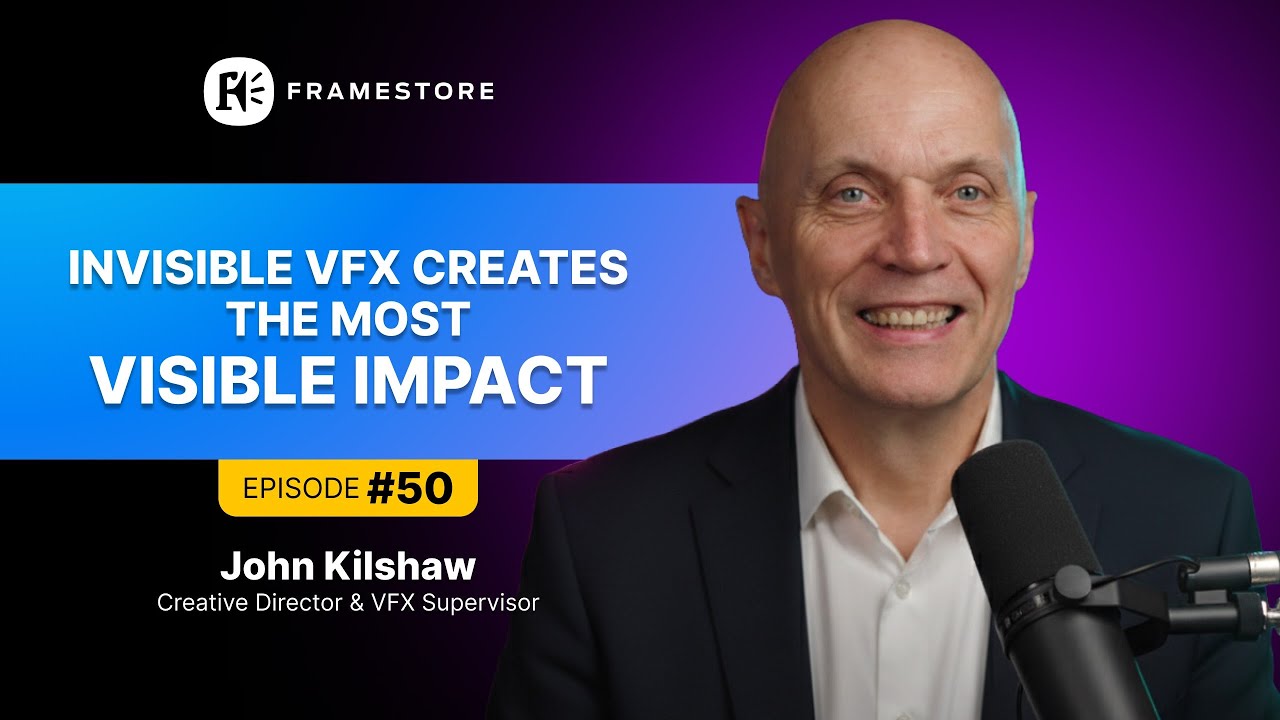
John Kilshaw, Creative Director & VFX Supervisor at Framestore—whose credits on One Piece and Avatar: The Last Airbender for Netflix involved integrating 3D elements into handheld-heavy live-action plates—discusses the episodic VFX workflow and the collaboration infrastructure that makes high-volume tracking practical in his Vitrina conversation.
John Kilshaw (Creative Director & VFX Supervisor, Framestore) on managing complex episodic VFX integration and the modern VFX landscape:
Stabilize-Then-Add: When to Pre-Process Your Plate
There’s a workflow for handheld VFX that many artists overlook—and it’s sometimes the cleanest solution for certain shot types. The approach: stabilize the plate first, add the VFX element to the stabilized version, then de-stabilize—apply the inverse of the stabilization transform—to reintroduce the camera movement while carrying the VFX element along with it.
This works best when the VFX element is relatively simple—a screen replacement, a logo on a surface, a 2D graphic element—and when the handheld movement is complex enough that direct planar tracking produces wavering results. By stabilizing to near-lockoff first, you’re essentially converting a hard handheld shot into a nearly locked-off shot for the purpose of element placement, then restoring the movement afterward.
The key requirement: the stabilization must be tracked using the same surface as the de-stabilization. If you stabilize using a planar track of the wall behind your subject, then de-stabilize using that same track data, the wall (and your element on it) will correctly follow the camera. If the stabilization and de-stabilization tracks are different, you introduce error at the recombination stage.
One major caveat: this workflow doesn’t work for 3D element integration, where the element needs to participate in parallax. Stabilizing a shot removes the parallax information the 3D solver needs—you’d be solving a stabilized camera that doesn’t reflect the real camera’s actual 3D movement. For 3D work, you need the full camera solve workflow described above.

Your AI Assistant, Agent, and Analyst for the Business of Entertainment
VIQI AI helps you plan content acquisitions, raise production financing, and find and connect with the right partners worldwide.
- Find active co-producers and financiers for scripted projects
- Find equity and gap financing companies in North America
- Find top film financiers in Europe
- Find production houses that can co-produce or finance unscripted series
- I am looking for production partners for a YA drama set in Brazil
- I am looking for producers with proven track record in mid-budget features
- I am looking for Turkish distributors with successful international sales
- I am looking for OTT platforms actively acquiring finished series for the LATAM region
- I am seeking localization companies offer subtitling services in multiple Asian languages
- I am seeking partners in animation production for children's content
- I am seeking USA based post-production companies with sound facilities
- I am seeking VFX partners to composite background images and AI generated content
- Show me recent drama projects available for pre-buy
- Show me Japanese Anime Distributors
- Show me true-crime buyers from Asia
- Show me documentary pre-buyers
- List the top commissioners at the BBC
- List the post-production and VFX decision-makers at Netflix
- List the development leaders at Sony Pictures
- List the scripted programming heads at HBO
- Who is backing animation projects in Europe right now
- Who is Netflix’s top production partners for Sports Docs
- Who is Commissioning factual content in the NORDICS
- Who is acquiring unscripted formats for the North American market
Manual Tracking and Keyframe Correction for Problem Shots
Automated trackers fail. Not occasionally—frequently, on real production footage. Lens flares cross the frame. Something passes in front of the track point. The camera jerks fast enough that the feature blurs beyond recognition for two frames. An actor’s hand sweeps across the surface you’re tracking. All of these are normal occurrences in handheld production footage, and every professional match move artist knows that automated tracking is the starting point, not the final answer.
Manual keyframing is the fallback—and it’s a genuine skill, not a failure state. The workflow: let the automated tracker run as far as it can, identify the frames where it drifts or jumps (usually visible as a sudden position error in the track data), and manually correct the track point position on those frames. The tracker interpolates between your corrected keyframes and the automated track data, producing a smoother result than either approach alone.
For badly corrupted sections—long occlusions, frames with extreme motion blur—the clean approach is to delete the automated data for the problem range and replace it with manual keyframes at a spacing that matches the complexity of the movement. Three to five keyframes across a 15-frame occluded section is usually sufficient; the interpolation handles the in-between positions.
Professional match move artists develop a workflow rhythm: automated track, review, correct, review again. According to Deadline‘s reporting on VFX production practices, the move toward AI-assisted tracking in tools like Nuke’s machine learning tracker and Mocha’s AI contour tracking has reduced the frequency of manual intervention on standard handheld shots—but the judgment required to identify where automation has failed and to correct it manually remains irreplaceable. That skill is still what hiring coordinators look for.
Matching Motion Blur and Camera Shake to VFX Elements
A technically perfect camera solve produces a locked element—but a locked element in handheld footage reads wrong, even when the track is flawless. The problem: real objects in a handheld scene have motion blur from the camera’s shutter behavior. They wobble slightly during fast movements due to lens breathing. They have a slight micro-vibration quality that’s encoded in every pixel of the plate. A CG element that’s perfectly locked but has none of these characteristics reads as foreign to the eye even when the compositing is otherwise clean.
The solution has two components:
- Motion blur matching: Add motion blur to your CG element that matches the shutter angle of the original camera. Most professional camera data includes shutter angle information (typically 180°, equivalent to a 1/50th exposure at 25fps, or 1/48th at 24fps). In Nuke, drive the element’s motion blur from the motion vector pass exported from the 3D render. In After Effects, use the Shutter Angle setting in the 3D renderer to match the camera’s parameters.
- Camera shake application: Extract the high-frequency shake component from the camera solve data and apply it to the 3D element in the composite. This is the micro-vibration that’s too fast to be semantic camera movement but too consistent to be noise. In Nuke, the Tracker node applied to a solved camera can isolate residual shake data that can then be applied to the CG render. In After Effects, applying the camera stabilization data inverted to the CG layer achieves a similar result.
Our coverage of AI-enhanced visual effects tools discusses how machine learning motion estimation is beginning to automate motion blur synthesis—but calibrating the result to the specific characteristics of a given shot’s camera movement still requires human review and adjustment.
Tool-by-Tool Workflow: After Effects, Nuke, Mocha Pro, and Blender
Different tools suit different shot types and production contexts. Here’s the practical breakdown:
After Effects
Best for: 2D element additions on moderate handheld footage, screen replacements with Mocha AE, title card placements. After Effects’ built-in point tracker works reliably on gentle handheld shots with clear features. Its 3D Camera Tracker fails on high-motion or limited-texture plates. Use the Warp Stabilizer to pre-process, then add VFX—just remember to remove the stabilization data before final output. Mocha AE bundled with After Effects handles most planar tracking needs directly within the workflow.
Nuke
Best for: Professional 3D element integration, complex multi-layer composites, high-end episodic and feature work. Nuke’s Camera Tracker is robust on most handheld scenarios and its machine learning-assisted tracker (available in recent versions) handles difficult motion blur and occlusion cases better than older feature-matching approaches. For camera data import, Nuke accepts exports from SynthEyes, PFTrack, and Blender’s tracker directly via .fbx and .chan file formats.
Mocha Pro
Best for: Any 2D planar tracking task on any tool stack—Mocha Pro exports to After Effects, Nuke, Premiere, DaVinci Resolve, and Final Cut Pro. Its planar tracking engine is consistently more robust on handheld footage than any built-in alternative. Use it as the first-choice tool for surface tracking, screen replacement, face tracking, and roto-assisted compositing on handheld plates. The stabilize module inside Mocha Pro enables the stabilize-then-add workflow described above with clean roundtrip data.
Blender
Best for: Independent productions, mid-tier projects, and learning. Blender’s Motion Tracking module provides a full 3D camera solve pipeline—feature tracking, camera solve, scene geometry setup, and compositing node integration—at no cost. On handheld footage with good texture and deliberate track point placement, Blender solves are production-quality. Solve accuracy typically lags SynthEyes on complex shots, but for many independent and short-film productions, the gap is acceptable against the cost saving.
Our broader article on VFX production from script to screen covers how tracking integrates into the full production pipeline—including the on-set data capture (lens calibration charts, tracking markers) that makes every downstream tracking task significantly easier.
Find VFX Studios With Active Handheld and Live-Action Production Pipelines
Trusted by Netflix, Warner Bros, Paramount, and Google TV. Track 400,000+ projects. Access 3 million verified entertainment professionals. Know which studios are in active production before job postings go public.
✔ 200 free credits | ✔ No credit card required | ✔ Cancel anytime
Frequently Asked Questions
What is the best camera motion tracking technique for handheld VFX footage?
Planar tracking via Mocha Pro is the most reliable method for 2D element additions on handheld footage—it analyzes an entire surface region rather than individual feature points, making it significantly more resistant to motion blur and partial occlusions than point-based trackers. For 3D element integration, a full camera solve in SynthEyes or PFTrack is required. After Effects’ built-in Camera Tracker works adequately on gentle handheld shots but fails on high-motion or texture-poor plates.
Why does my motion track drift on handheld footage?
Track drift on handheld footage typically comes from one of four sources: track point features that aren’t high-contrast enough, motion blur making feature positions uncertain between frames, rolling shutter distortion from the camera sensor, or track points on surfaces at different depths than your VFX element. Fix it by selecting better-quality features distributed across the same depth plane as your element, enabling rolling shutter compensation in your tracking application, and manually keyframing the sections where the automated track loses confidence.
What is planar tracking and how is it different from point tracking?
Point tracking follows individual pixel-level features from frame to frame—it’s fast and simple but unreliable on motion-blurred or partially occluded features. Planar tracking analyzes the transformation of an entire flat surface region (translation, rotation, scale, and perspective shear), using the aggregate motion of all texture within that region to produce a four-corner solve. It’s more robust on difficult footage because it averages across many pixels rather than relying on a single feature’s precise position. Mocha Pro is the industry-standard planar tracker.
Can you do camera motion tracking in Blender for VFX work?
Yes—Blender’s Motion Tracking module provides a complete 3D camera solve pipeline at no cost, including feature tracking, camera solve, scene geometry setup, and compositing integration via its node-based compositor. On handheld footage with good texture and deliberate track point selection, Blender solves are production-quality for independent and short-film work. Solve accuracy typically lags dedicated tools like SynthEyes on complex shots, but for many independent productions the trade-off against cost is acceptable. Reprojection error should target below 0.5 pixels for usable results.
What is rolling shutter and how does it affect tracking?
Rolling shutter is a sensor artifact present in CMOS cameras (virtually all DSLRs, mirrorless cameras, and many cinema cameras) where the image is captured one horizontal line at a time rather than all at once. During fast handheld motion, this produces a subtle wobbly distortion—the classic “jello effect”—where vertical lines appear to lean. Point trackers interpret this distortion as real motion, producing solve errors that manifest as horizontal jitter or strange perspective distortions. Enable rolling shutter compensation in SynthEyes, PFTrack, or Mocha Pro before solving any footage shot on CMOS sensors with significant handheld movement.
How many track points do I need for a 3D camera solve on handheld footage?
For a reliable 3D camera solve, aim for 50–100+ well-distributed track points covering the full image plane—including near the frame edges where parallax information is richest. More isn’t always better if the extra points are on poor features (low contrast, inconsistent visibility, moving objects). Quality and spatial distribution matter more than raw count. Tracks should cover multiple depth planes to give the solver enough parallax information to reconstruct the camera’s 3D path. Tracks on objects that move independently in the scene (cars, people, foliage in wind) must be excluded—they corrupt the solve.
What is a good reprojection error for a 3D camera solve?
A production-quality camera solve targets a reprojection error below 0.5 pixels—the average difference between where the solver predicts feature positions and where they actually appear in the footage. Errors between 0.5 and 1.0 pixel are often acceptable for shots where the VFX element is in mid-ground; errors above 1.0 pixel typically produce visible drift or instability in the integrated element. If your error is high, the most common causes are incorrect focal length, undiscovered rolling shutter, or moving objects included as track features. Resolve each systematically rather than trying to correct the error in compositing.
Should I stabilize handheld footage before adding VFX?
It depends on the element type and the workflow. Stabilize-then-add is effective for simple 2D element placements where you want to treat the shot as near-lockoff for element placement, then restore the camera movement afterward—the approach works cleanly when stabilization and de-stabilization use the same tracked surface. But it does not work for 3D element integration, where the element needs to participate in parallax. For 3D work, always track the original unstabilized plate to preserve the full camera motion data the 3D solver needs. Stabilizing first destroys the parallax information that makes a 3D solve accurate.
Conclusion: Handheld Tracking Is Hard—Until You Have the Right System
The camera motion tracking techniques that make VFX work perfectly on handheld footage aren’t about finding a clever workaround—they’re about applying a systematic methodology to a genuinely difficult technical problem. Each step in the pipeline, from track point selection through rolling shutter compensation to motion blur matching, addresses a specific source of integration failure. Handle them in order, and the result holds. Skip any of them, and the one you skipped is usually the thing the audience notices.
Key Takeaways:
- Planar tracking is the primary tool for 2D handheld work: Mocha Pro—used across DNEG, Framestore, ILM, and major production pipelines—outperforms point trackers on handheld footage by analyzing surface regions rather than individual features. It’s the standard for screen replacements and 2D element integration on moving camera plates.
- 3D camera solves require dedicated match move tools: After Effects’ built-in Camera Tracker handles gentle handheld shots. For anything more complex, SynthEyes or PFTrack are the professional standard. Target reprojection error below 0.5 pixels—errors above 1.0 pixel produce visible drift.
- Rolling shutter corrupts automated solves: Enable rolling shutter compensation before solving any CMOS camera footage with significant handheld movement. This is the most common undiagnosed source of unexplained tracking error on modern production footage.
- Manual correction is not failure—it’s professional practice: According to Deadline‘s reporting on VFX production, AI-assisted tracking tools are reducing manual intervention frequency—but the judgment to identify where automation has failed and correct it manually remains a core professional skill that hiring coordinators evaluate.
- Motion blur and camera shake matching complete the integration: A perfectly tracked element that has no motion blur or micro-vibration reads as foreign in handheld footage. Match shutter angle and apply extracted shake data from the camera solve to make the element participate in the same optical behavior as everything else in the frame.
Handheld footage is where a lot of the most compelling live-action VFX work happens—because that’s where productions are increasingly shooting, and the organic energy of handheld cinematography is something that digital tools have learned to work with rather than around. Master these techniques, and you’ll be equipped to handle it professionally wherever it comes up.
Discover VFX Studios Actively Sourcing Tracking and Match Move Expertise
Trusted by Netflix, Warner Bros, Paramount, and Google TV. Track 400,000+ projects. Access 3 million verified entertainment professionals. Ask VIQI which studios are hiring in your specialty right now.
✔ 200 free credits | ✔ No credit card required | ✔ Cancel anytime
Need direct introductions to VFX studios sourcing tracking and match move services? Explore Concierge Service →
Find Film+TV Projects, Partners, and Deals – Fast.
VIQI matches you with the right financiers, producers, streamers, and buyers – globally.
Producers Seeking Financing & Partnerships?
Book Your Free Concierge Outreach Consultation
(To know more about Vitrina Concierge Outreach Solutions click here)
Join Industry Briefings Trusted by Leaders

The Mid-Budget Comeback: Why Mid-Budget Films Is the Smartest Bet in the Room
Mid-budget films are attracting new capital. See why this segment is becoming one of the strongest bets in Film today.

Franchise Fatigue vs. IP Dependency: What Studios Should Be Betting On Now
s franchise performance softens, where will the next generation of valuable IP come from? Join the briefing.

Unscripted Is Eating the World: The Multi-Billion Reality and Format Boom
Unscripted is the new prestige — inside the $19.8B global format boom reshaping how streaming platforms compete.

How Co-Productions and Regional IP Are Reshaping Global Drama
As global drama evolves, which stories travel, which stay local, and how are they getting financed?