About Innovation Hub
 Global Content Pulse (Webinars)


 Global Production Financing
(Webinars)
Global Production Financing
(Webinars)  LeaderSpeak Podcast
  Global Entertainment Digest (Newsletter)
  About Vitrina
 About VIQI
 Our Story
 Our Solutions 🔥
 Film+TV Projects Tracker 🚀
 Case Studies
 Our Profile
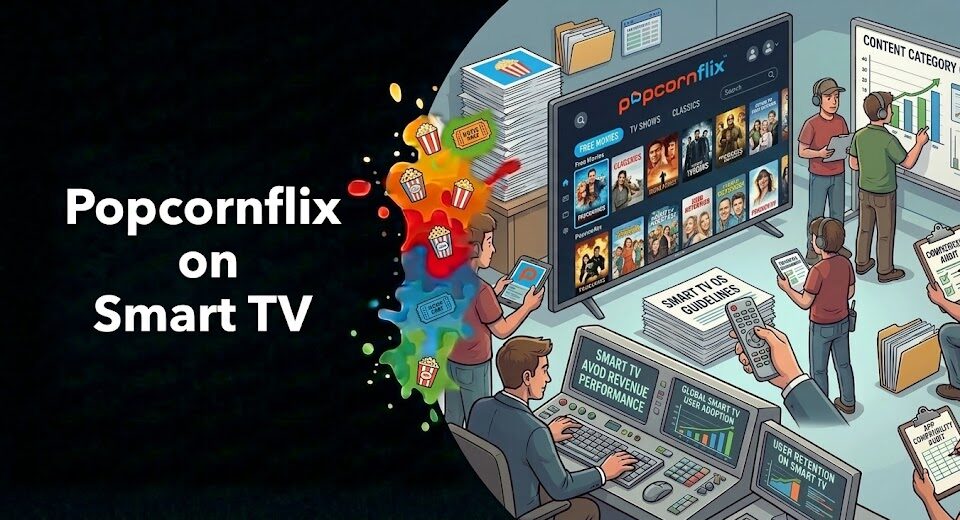
You already know Popcornflix is free. No subscription. No credit card. No sign-up required. But watching it on your laptop or phone is one thing—getting it onto the big screen is where most people stall out. Wrong search term, wrong app store, outdated instructions from 2022 that don’t match the post-relaunch version of the platform.
This guide cuts straight to working steps. Whether you’re on a Roku, an Amazon Firestick, a Samsung Smart TV, an Apple TV, or an Android TV—each setup is covered below, step by step, in under five minutes per device. No side-loading, no workarounds, no technical knowledge required.
One important note first: Popcornflix relaunched in March 2025 under new ownership by Screen Media Ventures and Crackle Connex after its previous parent company’s bankruptcy. App availability across some platforms is still being restored. We’ll flag where that matters so you don’t waste time searching for an app that hasn’t been reinstated yet on your specific device.
Table of Contents
- All Supported Devices at a Glance
- How to Watch Popcornflix on Roku
- How to Watch Popcornflix on Amazon Firestick / Fire TV
- How to Watch Popcornflix on Samsung Smart TV
- How to Watch Popcornflix on Apple TV
- How to Watch Popcornflix on Android TV and Google TV
- How to Watch Popcornflix on iPhone and Android Phone
- Troubleshooting: Popcornflix Not Working?
- Frequently Asked Questions
- Conclusion
Got Content Ready for Platforms Like Popcornflix? We’ll Connect You to the Buyers.
Vitrina Concierge is your Virtual Agent. We make warm introductions directly to acquisition executives at AVOD platforms—Popcornflix, Tubi, Pluto TV, and 400+ others—who are actively seeking content like yours right now.
- LA producer → Netflix UK, Fifth Season, Fox Entertainment (48 hours)
- Korean animation studio → Netflix Adult Animation (week one)
- Middle Eastern studio → Legendary Pictures (direct access)
All Supported Devices at a Glance
Before diving into device-specific steps, here’s a quick reference for Popcornflix’s confirmed device support as of March 2026. Some apps that existed before the 2024 bankruptcy are still being restored—this table reflects what’s verified working right now:
And if your smart TV app search comes up empty? The fastest workaround is plugging in a $30 Roku or Firestick—both apps are reliably available on those sticks and will get you streaming on any TV with an HDMI port.
How to Watch Popcornflix on Roku
Roku is the most straightforward path. The Popcornflix channel is available across all current Roku devices and Roku TV models. Takes about 90 seconds.
- From your Roku home screen, navigate to the left sidebar and select Streaming Channels (or press the Home button and look for the Roku Channel Store icon).
- Select Search Channels from the Channel Store menu.
- Type Popcornflix using your Roku remote’s on-screen keyboard. The official channel should appear at the top of results.
- Select the Popcornflix channel tile, then choose Add Channel. No Roku account password required beyond your existing Roku login.
- Once installed, select Go to Channel—or find Popcornflix on your home screen and press OK to launch.
- Start browsing and press play. No Popcornflix account required. You’re watching free content on your TV in under two minutes.
Roku tip: If you don’t see the channel immediately after installation, press the Home button five times, then navigate back. It triggers a channel list refresh that picks up newly installed apps within a few seconds.
How to Watch Popcornflix on Amazon Firestick or Fire TV
The Amazon Firestick and Fire TV Cube both support Popcornflix through the Amazon Appstore. This works on Firestick 4K, Fire TV Stick Lite, Fire TV Cube, and Fire TV Edition smart TVs.
- Press the Home button on your Firestick remote to reach the home screen.
- Navigate to the top menu bar and select the magnifying glass Search icon.
- Type Popcornflix. You can also use Alexa voice search—hold the microphone button and say “Popcornflix” for hands-free search.
- Select the Popcornflix app from the search results. Look for the official app with the Popcornflix logo—avoid anything that looks like a third-party clone.
- Choose Get (if free) or Download. The app installs in under 30 seconds on most connections.
- Open the app from your home screen or the Your Apps and Channels row. Hit play on anything in the library. Done.
Fire TV tip: If the app appears as “unavailable for your device”—which can happen on older first-generation Firesticks—your device may be running a firmware version that predates the relaunched Popcornflix app. Check Settings → My Fire TV → About → Check for Updates first, then retry the download.

Your AI Assistant, Agent, and Analyst for the Business of Entertainment
VIQI AI helps you plan content acquisitions, raise production financing, and find and connect with the right partners worldwide.
- Find active co-producers and financiers for scripted projects
- Find equity and gap financing companies in North America
- Find top film financiers in Europe
- Find production houses that can co-produce or finance unscripted series
- I am looking for production partners for a YA drama set in Brazil
- I am looking for producers with proven track record in mid-budget features
- I am looking for Turkish distributors with successful international sales
- I am looking for OTT platforms actively acquiring finished series for the LATAM region
- I am seeking localization companies offer subtitling services in multiple Asian languages
- I am seeking partners in animation production for children's content
- I am seeking USA based post-production companies with sound facilities
- I am seeking VFX partners to composite background images and AI generated content
- Show me recent drama projects available for pre-buy
- Show me Japanese Anime Distributors
- Show me true-crime buyers from Asia
- Show me documentary pre-buyers
- List the top commissioners at the BBC
- List the post-production and VFX decision-makers at Netflix
- List the development leaders at Sony Pictures
- List the scripted programming heads at HBO
- Who is backing animation projects in Europe right now
- Who is Netflix’s top production partners for Sports Docs
- Who is Commissioning factual content in the NORDICS
- Who is acquiring unscripted formats for the North American market
How to Watch Popcornflix on Samsung Smart TV
Samsung’s Tizen-based Smart TVs have had variable Popcornflix availability since the March 2025 relaunch. Newer models (2020 and later) are more likely to have the app than older Tizen versions. Here’s how to check and install.
- Press the Smart Hub button on your Samsung remote (or the Home button on newer remotes) to open the Smart Hub interface.
- Navigate to the Apps section using the directional pad on your remote.
- Select the search icon (magnifying glass) within the Apps section and type Popcornflix.
- If the app appears, select Install—it will download and appear in your Apps library within seconds.
- If Popcornflix doesn’t appear in your Samsung’s search results, the app likely hasn’t been restored for your TV’s firmware yet. Your fastest workaround: plug a Firestick or Roku into your Samsung’s HDMI port. Both devices are fully supported and cost under $40.
As reported by Variety, post-bankruptcy AVOD relaunches follow a rolling app restoration pattern—streaming stick compatibility first, manufacturer TV app stores progressively after. And according to Deadline, smart TV store restoration timelines typically run 6–12 months after a platform relaunch—making Roku and Firestick the reliable interim path. Samsung app coverage is expected to expand through mid-2026.
Track Every AVOD Platform’s Acquisition Moves—Including Popcornflix
Trusted by Netflix, Warner Bros, and Paramount. Join 140,000+ companies tracking the global streaming supply chain. Know which AVOD platforms are buying what, before the deals close.
✓ 200 free credits | ✓ No credit card required | ✓ Full platform access
How to Watch Popcornflix on Apple TV
Popcornflix is available on Apple TV 4th generation and later—that’s the HD model (2015+) and the 4K models. It isn’t supported on the older Apple TV 3 or earlier hardware.
- From the Apple TV home screen, navigate to the App Store app (blue icon with an “A”).
- Select Search at the top of the App Store.
- Use the on-screen keyboard or Siri voice input (hold the microphone button on your Siri Remote and say “Popcornflix”) to search.
- Select the Popcornflix app from search results and choose Get to install. It’s free.
- Open the app from your home screen. No account login required—select a movie or show and press play immediately.
Apple TV tip: Once installed, you can add Popcornflix to your Apple TV’s top shelf for faster access. Long-press on the Popcornflix icon and select Move to drag it to a prominent position on your home screen.
How to Watch Popcornflix on Android TV and Google TV
Android TV and Google TV devices—including Chromecast with Google TV, Sony Android TVs, Hisense Google TV models, and Nvidia Shield—all support Popcornflix through the Google Play Store.
- From your device’s home screen, navigate to the Google Play Store app.
- Select the Search bar and type Popcornflix—or use Google Assistant voice input by pressing the microphone button on your remote.
- Select the official Popcornflix app and press Install.
- Once installed, open the app from your home screen or app drawer.
- Select any title and press play. No account creation needed. Browsing and playback are immediate.
Google TV tip: On Chromecast with Google TV, you can also ask Google Assistant to find Popcornflix content directly. Say “Hey Google, open Popcornflix” and the app will launch from the home screen shortcut once installed—or it’ll prompt you to install it if you haven’t yet.
How to Watch Popcornflix on iPhone and Android Phone
Both the iOS and Android mobile apps are available and stable post-relaunch. Mobile is also the fastest way to verify Popcornflix’s current catalog before setting up on a TV device—which saves time if you’re checking availability for a specific title.
- iPhone/iPad: Open the App Store → Search “Popcornflix” → Tap Get → Open and play. No login required.
- Android: Open the Google Play Store → Search “Popcornflix” → Tap Install → Open and play. No login required.
Want to watch mobile content on your TV? AirPlay works from the iOS Popcornflix app to any Apple TV or AirPlay-compatible TV. For Android, Chromecast casting from the app is supported on compatible Google TV and Android TV devices. Check the cast icon within the Popcornflix app to confirm your TV is detected.
For more context on what you’ll actually find once you’re set up, our guide to the best movies on Popcornflix right now breaks down the catalog by genre so you spend less time scrolling and more time watching.
Troubleshooting: Popcornflix Not Working on Your Device?
Post-relaunch, a few technical issues show up consistently across devices. Here’s what to do for each common problem:
App not found in app store
If Popcornflix doesn’t appear when you search your device’s app store, there are two likely causes. First: your device’s firmware may be outdated—check for system updates in your device settings, install them, and search again. Second: the app may not yet be restored for your specific device model post-relaunch. In that case, plug in a Roku or Firestick—both are confirmed available and solve the problem on any TV with an HDMI port.
Ads not loading or causing buffering
Popcornflix’s ad loading has had reported lag issues on Roku post-relaunch—breaks occasionally taking 10–15 seconds before content resumes. This is a known infrastructure issue. A wired Ethernet connection dramatically reduces this problem. If you’re on Wi-Fi, check that your router signal is strong at the TV location—moving the router closer or using a Wi-Fi extender typically resolves ad-loading lag.
App crashes or freezes mid-movie
Force-close the app and relaunch. If the issue persists, clear the app’s cache—available in Settings → Apps → Popcornflix → Clear Cache on most Android and Fire TV devices. On Roku, removing and re-adding the channel typically resolves persistent crash issues by downloading a fresh install from the channel store.
Title not available / library seems empty
Popcornflix’s library is geo-restricted to US and Canada post-relaunch. If you’re outside those regions, titles may appear in the interface but fail to play. A VPN set to a US server will technically enable access, but that’s outside Popcornflix’s official terms of service. For viewers outside North America, Tubi has broader international availability—see our Popcornflix vs Tubi comparison for regional alternatives. And for full context on the platform itself, our guide to whether Popcornflix is free and legal covers everything about how the service works.
Ask VIQI: Which AVOD Platforms Are Acquiring Content Like Yours Right Now?
VIQI is Vitrina’s AI assistant—trained on 1.6 million titles, 360,000 companies, and 5 million entertainment professionals. Get instant intelligence on which free streaming platforms are actively buying, what mandates are active, and who the acquisition decision-makers are.
✓ Included with 200 free credits | ✓ No credit card needed
Frequently Asked Questions
How do I watch Popcornflix on my smart TV?
The method depends on your TV’s operating system. On Roku TV, Android TV, and Google TV, search for “Popcornflix” in the built-in app store and install it directly. On Samsung and LG, search their respective stores first—if the app isn’t available yet for your model, plug in a Roku or Firestick via HDMI as a reliable workaround. All setup takes under five minutes.
Is Popcornflix on Roku?
Yes. Popcornflix is available on all current Roku devices—Roku Express, Roku Streaming Stick 4K, Roku Ultra, and Roku TV models. Search “Popcornflix” in the Roku Channel Store, select Add Channel, and you’re streaming within 90 seconds. No account required.
Is Popcornflix available on Amazon Firestick?
Yes. Popcornflix is available on Amazon Firestick and Fire TV via the Amazon Appstore. Search “Popcornflix,” select the official app, and install it. It also works with Alexa voice search—hold the microphone button on your remote and say “Popcornflix” to find it hands-free. The app is free with no subscription required.
Does Popcornflix work on Samsung Smart TV?
On some models, yes. Newer Samsung TVs (2020 and later) running Tizen OS may have the Popcornflix app in the Samsung Smart Hub. Older models may not—the app restoration for Samsung is still in progress post-relaunch. If it’s not available on your Samsung, the easiest fix is connecting a Roku or Firestick to your TV’s HDMI port. Both are fully supported and cost under $40.
Do I need to create an account to watch Popcornflix on TV?
No account required—on any device. Popcornflix is the only major free streaming service that lets you watch without signing up on TV apps as well as on the web. Install the app, open it, and start playing. No email, no password, no credit card—ever.
Why can’t I find Popcornflix in my app store?
Two likely causes: your device’s firmware is outdated (check for and install system updates, then search again), or Popcornflix hasn’t yet restored its app for your specific device model following the March 2025 relaunch. Screen Media Ventures is progressively restoring apps across platforms. If it’s not yet available for your TV, plug in a Roku Streaming Stick or Amazon Firestick—both are confirmed working and available right now.
Can I cast Popcornflix from my phone to my TV?
Yes. iPhone users can AirPlay from the Popcornflix iOS app to Apple TV or any AirPlay-compatible smart TV. Android users can Chromecast from the Popcornflix Android app to Chromecast, Google TV, or Android TV devices—tap the Cast icon within the Popcornflix app to detect nearby devices.
Is Popcornflix free on smart TV apps?
Completely free on every device. There’s no paid tier on any Popcornflix app—the platform is 100% ad-supported. You’ll see commercial breaks during content, but the app itself, all movies, and all TV shows cost nothing. No subscription, no rental fees, no in-app purchases.
Conclusion: You’re 5 Minutes Away from Free Streaming on Your Big Screen
Popcornflix on your TV is a five-minute job—less on Roku and Firestick, where the apps are reliably available and the setup is two button presses and a search. Samsung and LG users may need to use the streaming stick workaround if their TV’s app store hasn’t been updated yet, but that’s a $30 fix that also improves every other streaming app you use on that TV.
Key Takeaways:
- Roku and Firestick Are the Most Reliable: Both have confirmed Popcornflix app availability post-relaunch—under 90 seconds from search to streaming on either device.
- Apple TV and Android TV Are Also Confirmed: Direct app store installs work on 4th-gen Apple TV and all current Android TV / Google TV devices including Chromecast with Google TV.
- Samsung and LG Have Variable Coverage: Newer 2020+ models may have the app; older models likely don’t yet. Use Roku or Firestick via HDMI as an instant workaround.
- No Account Ever Required: Popcornflix is the only major free streaming platform where you never need to create an account—on any device, including TV apps.
- Post-Relaunch Apps Are Still Expanding: Screen Media Ventures is progressively restoring device coverage through 2026—if your device doesn’t have it today, check back in 60–90 days.
Once you’re set up, the next question is what to actually watch. Our curated guide to the best movies on Popcornflix right now gives you a genre-by-genre breakdown of the titles genuinely worth your time—so you can skip the scroll and get straight to something good.
Get Your Content in Front of AVOD Acquisition Executives—in 48 Hours
Trusted by Netflix, Warner Bros, Paramount, and Google TV. Track 400,000+ projects. Access 3 million verified executives. Discover which AVOD platforms are actively acquiring content matching your genre and territory.
✓ 200 free credits | ✓ No credit card required | ✓ Cancel anytime
Find Film+TV Projects, Partners, and Deals – Fast.
VIQI matches you with the right financiers, producers, streamers, and buyers – globally.
Producers Seeking Financing & Partnerships?
Book Your Free Concierge Outreach Consultation
(To know more about Vitrina Concierge Outreach Solutions click here)
Join Industry Briefings Trusted by Leaders

The Mid-Budget Comeback: Why Mid-Budget Films Is the Smartest Bet in the Room
Mid-budget films are attracting new capital. See why this segment is becoming one of the strongest bets in Film today.
Franchise Fatigue vs. IP Dependency: What Studios Should Be Betting On Now
s franchise performance softens, where will the next generation of valuable IP come from? Join the briefing.

Unscripted Is Eating the World: The Multi-Billion Reality and Format Boom
Unscripted is the new prestige — inside the $19.8B global format boom reshaping how streaming platforms compete.
How Co-Productions and Regional IP Are Reshaping Global Drama
As global drama evolves, which stories travel, which stay local, and how are they getting financed?