About Innovation Hub
 Global Content Pulse (Webinars)


 Global Production Financing
(Webinars)
Global Production Financing
(Webinars)  LeaderSpeak Podcast
  Global Entertainment Digest (Newsletter)
  About Vitrina
 About VIQI
 Our Story
 Our Solutions 🔥
 Film+TV Projects Tracker 🚀
 Case Studies
 Our Profile
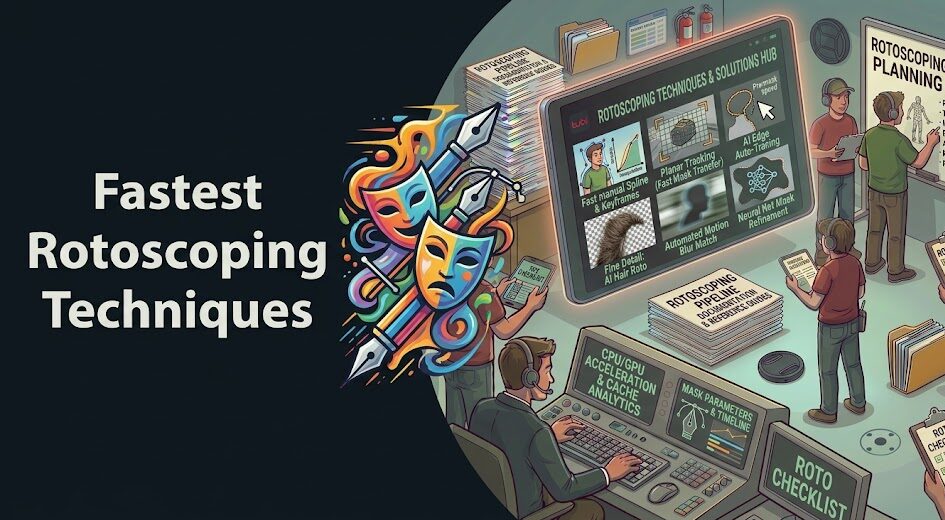
Every compositor knows the feeling. You open a shot and the subject—a person, a vehicle, a creature—is backlit against a moving background, their hair blowing, fabric shifting, and the camera tracking the whole time. That’s when the roto queue starts looking like a death sentence.
Efficient rotoscoping techniques don’t change the fact that it’s meticulous work. What they do is eliminate the hours you’d otherwise spend working against yourself—wrong tool for the shot type, manual keyframing where interpolation would work, frame-by-frame precision where a broader approach would serve just as well.
Professional roto artists at studios like Framestore, DNEG, and PhantomFX aren’t faster because they have better reflexes. They’re faster because they’ve built workflows that match the technique to the shot—rather than applying one method to every situation regardless of what the footage actually demands. And the arrival of AI-assisted masking tools over the last three years has added a genuine third gear to that workflow that didn’t exist before.
This guide covers the complete toolkit for cutting subjects from complex backgrounds quickly—from shape interpolation strategy through AI-assisted automation, multi-pass approaches for hair and semi-transparent surfaces, and tool-specific techniques in Silhouette, Mocha Pro, and After Effects. If you’re currently spending 60% of your post time on roto, the right approach can realistically cut that to 35%—without sacrificing edge quality on the shots that actually matter.
In This Guide:
- Assess the Shot Before You Draw a Single Shape
- Shape Interpolation Strategy: Where Most Roto Artists Lose Time
- AI-Assisted Rotoscoping: What It Can and Can’t Do for You
- Multi-Pass Roto: Hair, Transparency, and Motion Blur
- Tool-Specific Techniques: Silhouette, Mocha Pro, After Effects
- Quality Control and Delivery: Avoiding the Rework Trap
- When to Outsource Roto and How to Find Specialists
- FAQ
- Conclusion
Ask VIQI: Which Studios Specialize in Roto and Paint for Your Production Type?
VIQI is Vitrina’s AI assistant—trained on 1.6 million titles, 360,000 companies, and 5 million entertainment professionals. Ask it which roto specialists have delivered on productions like yours.
✓ Included with 200 free credits | ✓ No credit card needed
Assess the Shot Before You Draw a Single Shape
The biggest efficiency gains in roto don’t come from drawing faster. They come from choosing the right approach before you touch a tool. A two-minute shot assessment before you start can save 40 minutes of rework. Here’s the decision tree professional roto artists run through instinctively—and that you should build into your process explicitly until it becomes habit.
First: can a keyer handle any of this? If there’s any contrast between subject and background—color difference, luminance separation, even partial green or blue screen elements—exhaust your keyer before reaching for a roto shape. A partial key combined with a simple edge holdout matte can replace 60% of manual roto on the right shot. Garbage matte the rest. Only roto what the key genuinely can’t handle.
Second: what’s actually moving relative to what? Identify every element in the subject that moves independently. A person walking has arms, legs, and head each moving on different trajectories—each needing their own shape hierarchy. Hair moves differently from the scalp. Clothing edges flex and compress. Map all of this before you start so you’re building a logical shape structure, not patching problems shot by shot.
Third: what’s the downstream use? A rough holdout matte for a background replacement doesn’t need the same edge precision as a hero matte that will be composited against a detailed environment in close-up. Calibrate your precision to what the shot actually requires. Spending two hours on sub-pixel edge accuracy for a matte that will be used at 50% opacity in a wide shot is a budget you can’t get back.
Shape Interpolation Strategy: Where Most Roto Artists Lose Time
Manual keyframe-by-keyframe roto is the slowest possible approach. But the opposite extreme—setting keyframes sparsely and hoping the software interpolates correctly—produces broken mattes that need more cleanup than the original frame-by-frame work would have required. The efficiency sweet spot is strategic keyframe placement: setting keys at every moment of significant change, and trusting interpolation for the frames in between where motion is predictable.
The Change-Point Method
Every shot has specific frames where motion direction changes, speed changes, or a new edge is revealed by camera movement or subject action. These are your change-point keyframes—and they’re the only frames that actually require manual shape adjustment in most shots. Set your first key on the opening frame. Scrub to the next change point—maybe a limb reverses direction, maybe the camera swings and reveals a new edge. Set your key there. Let the software interpolate between them. Check the interpolated frames. If they hold, move on. If they break, add a correction key only where needed.
This approach can reduce your total keyframe count by 60–70% compared to frame-by-frame work on shots with smooth, predictable motion. Where it breaks down: fast, chaotic movement, shots with significant motion blur, and anything involving hair in wind. Those need a different strategy—which is exactly what the multi-pass section below covers.
Shape Hierarchy and the Parent-Child Relationship
Professional roto shape structures use parent-child hierarchies to separate global motion from local movement. A person walking through frame has a primary motion—overall translation across the screen. Build a parent null or master shape that tracks this global movement. Then attach individual shapes for arms, legs, and head to this parent. When the whole body moves, the parent handles it. Your child shapes only need to animate the local, independent movement of each limb relative to the body’s overall trajectory. This eliminates the redundant work of animating the same global movement across every individual shape.
In Silhouette, this is the native shape hierarchy system. In Mocha Pro, the equivalent is layer nesting and the ability to link shapes to tracking data from a parent layer. In After Effects, you’re working with mask keyframe structures that don’t support true hierarchies—which is one of the reasons professionals don’t use AE as their primary roto tool on complex shots.
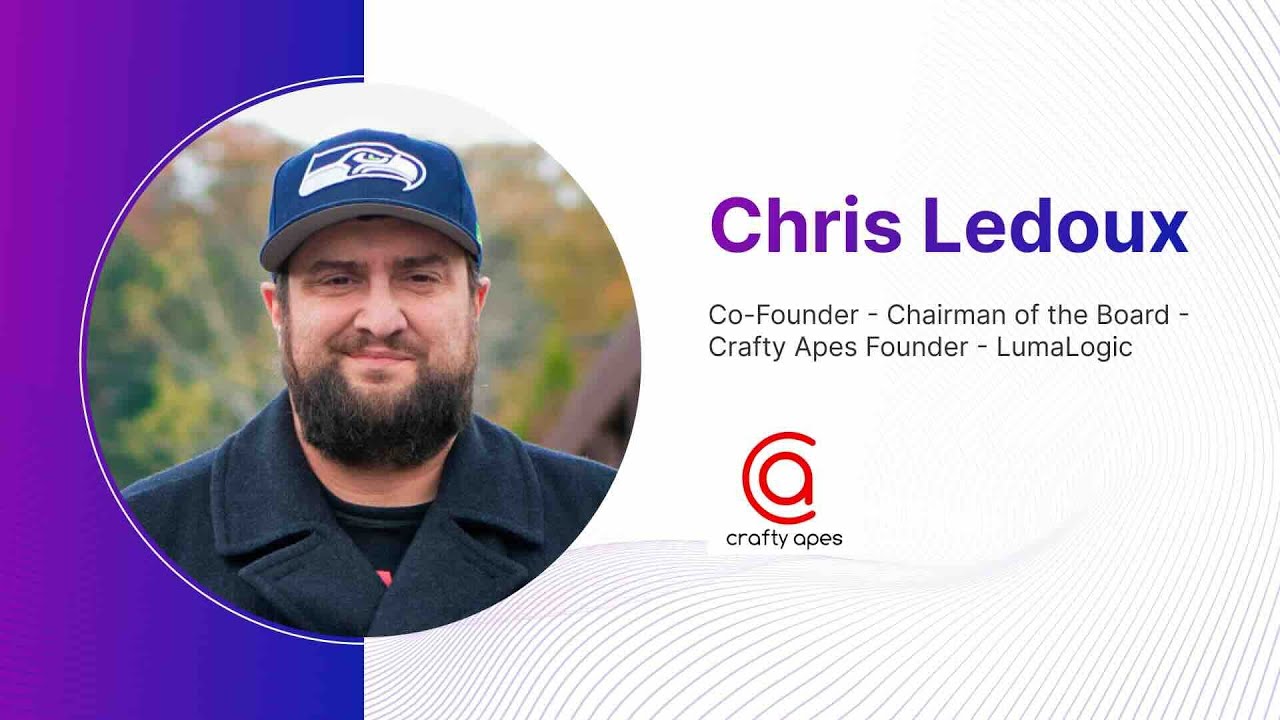
Chris LeDoux (VFX Supervisor & Director, AI/ML specialist) — who brought AI and computer vision expertise to productions including Hidden Figures and La La Land — discusses how AI is reshaping VFX workflows and what compositors need to understand about the new toolset:
AI-Assisted Rotoscoping: What It Can and Can’t Do for You
Let’s be direct about the current state: AI-assisted rotoscoping is genuinely useful for a specific class of shots. It’s not a roto replacement. But on the shots it handles well, it’s one of the most significant efficiency improvements the discipline has seen in two decades—and dismissing it because it can’t handle everything is leaving real time on the table.
Tools like Runway ML’s Rotoscope, After Effects’ Roto Brush 2, DaVinci Resolve’s Magic Mask, and the AI-assisted modules in Silhouette 2023+ all use neural network segmentation to propagate mattes through footage. Feed them a single frame selection and they’ll attempt to track and propagate a consistent matte forward and backward through the clip. On the right footage—good contrast, relatively clean motion, subject clearly distinguishable from background—this can produce a 70–80% accurate matte in seconds that you then refine manually. On difficult footage—motion blur, complex backgrounds with similar color to the subject, fine hair against textured environments—the AI will produce something that needs as much correction as a manual approach would have required in the first place.
Where AI Roto Earns Its Place in Your Pipeline
The smart play is using AI roto as a draft generation tool, not a final matte tool. Run the AI pass first. If it gets you to 70% in a few seconds, that’s 70% of the work eliminated from the manual queue—you’re now correcting rather than building. If it gets you to 40% on a difficult shot, you’ve still eliminated the easy frames and identified exactly which frames need full manual attention. Either way, it’s faster than starting from scratch.
John Kilshaw, Creative Director & VFX Supervisor at Framestore, has spoken about the shift in episodic VFX pipelines toward AI-assisted workflows on productions for Netflix including One Piece and Avatar: The Last Airbender—noting that AI tools have genuinely compressed the turnaround time on high-volume roto work, but that the human artistic judgment required to assess, correct, and sign off on mattes hasn’t diminished. The tool changes. The skill requirement doesn’t disappear. It shifts from execution to supervision.
Practically: build your pipeline to run the AI pass on every shot automatically as the first step. Triage the output—flag shots where the AI result is production-usable with minor refinement, and shots where it’s essentially a reference draft. Allocate your manual roto time to the second category. On a typical episodic block of 80–100 roto shots, this triage approach can reduce the manual roto load by 30–40%—which is the difference between hitting your delivery date and missing it.

Your AI Assistant, Agent, and Analyst for the Business of Entertainment
VIQI AI helps you plan content acquisitions, raise production financing, and find and connect with the right partners worldwide.
- Find active co-producers and financiers for scripted projects
- Find equity and gap financing companies in North America
- Find top film financiers in Europe
- Find production houses that can co-produce or finance unscripted series
- I am looking for production partners for a YA drama set in Brazil
- I am looking for producers with proven track record in mid-budget features
- I am looking for Turkish distributors with successful international sales
- I am looking for OTT platforms actively acquiring finished series for the LATAM region
- I am seeking localization companies offer subtitling services in multiple Asian languages
- I am seeking partners in animation production for children's content
- I am seeking USA based post-production companies with sound facilities
- I am seeking VFX partners to composite background images and AI generated content
- Show me recent drama projects available for pre-buy
- Show me Japanese Anime Distributors
- Show me true-crime buyers from Asia
- Show me documentary pre-buyers
- List the top commissioners at the BBC
- List the post-production and VFX decision-makers at Netflix
- List the development leaders at Sony Pictures
- List the scripted programming heads at HBO
- Who is backing animation projects in Europe right now
- Who is Netflix’s top production partners for Sports Docs
- Who is Commissioning factual content in the NORDICS
- Who is acquiring unscripted formats for the North American market
Multi-Pass Roto: Hair, Transparency, and Motion Blur
Hair is the shot that humbles roto artists. Not because it’s impossible—it isn’t—but because the instinct to try to capture every strand with a precise spline is exactly wrong. That’s the approach that takes twelve hours. The professional approach takes two, and it produces results that are often indistinguishable from the twelve-hour version at the resolution and viewing distance most mattes are actually used at.
The Holdout and Blend Strategy for Hair
The multi-pass approach for hair uses three separate elements that combine to produce a convincing edge. First, a hard body matte—a clean, tight shape following the skull and shoulders, essentially the core subject without any hair detail. This is your base. Fast to draw, easy to animate, bulletproof edge quality on the solid parts of the subject.
Second, a hair holdout matte—a softer, looser shape that extends beyond the hard body matte into the hair region, with the opacity rolled back to 30–60% depending on the hair density. This semi-transparent matte allows the background to bleed through the hair region at reduced opacity, approximating the see-through quality of real hair without trying to draw individual strands. Adjust the feathering and opacity on a shot-by-shot basis against your background to find the right balance.
Third, where hair is flying significantly or has strong backlight creating a halo, use a luminance-keyed hair pass—extract the bright, lit hair edges from the plate using a luma key and add them back over the composite at reduced opacity. This catches the fine flyaway detail that neither the hard matte nor the holdout matte can address. Combined, these three passes produce hair integration that holds up to scrutiny without requiring the frame-by-frame precision work that single-pass hair roto demands.
Handling Motion Blur and Semi-Transparent Surfaces
Limbs at speed and flowing fabric both produce motion blur at their edges—a gradual opacity falloff that transitions smoothly from fully opaque subject to fully transparent background. A hard matte edge snapping directly to the blur region looks immediately wrong. But drawing the full extent of the blur manually is time-consuming and produces inconsistent results.
The professional technique: draw your shape to the leading edge of the motion blur, then apply feathering that extends outward to approximately where the blur fully resolves. This approximates the physical falloff without trying to track it precisely. On shots where motion blur is severe—a fast arm swing, a running subject—combine this with a motion vector-driven blur pass on the composite side, using the matte as the base but extending the edge treatment in comp rather than trying to capture it all in the roto shape itself.
Find Verified Roto and Paint Studios Actively Taking Projects on Vitrina
Trusted by Netflix, Warner Bros, and Paramount. Search roto, paint, and compositing specialists across 140,000+ companies—by territory, budget, and verified credits.
✓ 200 free credits | ✓ No credit card required | ✓ Full platform access
Tool-Specific Techniques: Silhouette, Mocha Pro, After Effects
The technique principles above apply regardless of what software you’re working in. But each tool has specific workflows that either accelerate or slow down those principles—and knowing where to push each tool is what separates artists who are fast from artists who are just busy.
Silhouette: The Production Roto Standard
Silhouette (now part of Boris FX) is the tool of choice on major productions requiring high-volume roto—episodic television, feature film, commercials with demanding integration. Its shape system, onion-skinning, and viewer tools are purpose-built for roto at scale in ways that general compositing applications aren’t.
The two Silhouette features that most directly reduce roto time: Reshape (which allows you to nudge individual shape points across a frame range without setting explicit keyframes—invaluable for minor tracking corrections) and the Tracker integration (which lets you attach shape motion directly to planar or point track data, so the entire shape follows the tracked motion without manual keyframing). On shots where the subject has clear, trackable regions, driving shapes from tracking data rather than manual animation can reduce keyframe work by 70–80% for the tracked elements.
Mocha Pro: Planar Tracking as the Efficiency Engine
Mocha Pro’s competitive advantage is its planar tracking engine—the most robust available in any production roto tool. Planar tracking works on surfaces (rather than tracking individual points), making it resilient to partial occlusion, lens distortion, and camera movement that would cause point-based trackers to fail. And because Mocha treats the tracked plane as the motion driver for attached shapes, your roto shapes automatically follow the tracked region without manual keyframing.
The workflow that saves the most time: track the dominant plane of the subject (the torso, for example), build your shapes attached to that track, then add additional tracks and shapes for elements that deviate from the main plane (arms swinging away from the body, the head turning independently). You’re animating the deviations from tracked motion—not the full motion itself. On shots with significant camera movement, this can compress a two-hour manual roto job into thirty minutes.
After Effects: Honest About Its Limits
After Effects works for roto on shots that don’t demand the precision or efficiency of a dedicated roto tool. Roto Brush 2 is the fastest entry point for simple subjects with reasonable contrast. For shots where Roto Brush struggles—complex edges, motion blur, low contrast between subject and background—you’re back to manual mask keyframing, which is slower and harder to manage in AE than the equivalent workflow in Silhouette or Mocha Pro. And without native shape hierarchies, managing complex multi-shape roto structures in AE becomes unwieldy quickly.
Use After Effects for roto when: you’re doing quick turnaround work, the shot is straightforward, or you’re integrating roto directly into a comp pipeline where moving the shot to a dedicated app isn’t practical. Use Silhouette or Mocha Pro when: shot complexity demands it, you’re working a batch of roto-heavy shots, or edge quality will be scrutinized at large screen sizes. This isn’t about preference. It’s about not fighting your tools on shots where the tool isn’t designed to win.
Quality Control and Delivery: Avoiding the Rework Trap
Fast roto that has to be redone isn’t fast roto. It’s double the work. Most roto rework isn’t caused by poor technique—it’s caused by reviewing mattes against the wrong background. You drew your shape carefully against the original plate, but your compositor is dropping it against a CG environment with dramatically different luminance values, and suddenly the edge quality that looked fine in isolation looks terrible in context.
Always review roto against the intended composite background—or at minimum against a high-contrast reference (black and white) that will reveal edge problems the original plate’s complexity was hiding. Add a checkerboard underneath your matte as a quick review pass. Any chatter, edge crawl, or transparency inconsistency that would be invisible against the original plate will be immediately apparent against a neutral background.
On episodic productions delivering to platforms including Netflix and Warner Bros, matte quality review against the delivery specification is a mandatory gate—and roto that passes internal review but fails the client QC pass is the costliest possible rework scenario. Front-load your quality check. It takes ten minutes. Rework takes hours.
When to Outsource Roto and How to Find the Right Specialists
Here’s the honest production reality: roto is often the most outsource-friendly task in VFX. The input is footage. The output is mattes. The technical interface is standard file formats. There’s no proprietary pipeline dependency the way there is with simulation or compositing. That means a skilled roto team anywhere in the world can deliver production-quality work into your pipeline if they know the specifications and you’ve verified their quality standard.
The global roto and paint market has mature specialist facilities across India—particularly Mumbai, Chennai, and Hyderabad—Eastern Europe, and Southeast Asia that serve productions from DNEG, Framestore, and other major VFX studios as part of their episodic workflows. These aren’t second-tier operations. Many of them carry the same credits as the headline studios because they are the roto pipeline for those studios. Studios like Outpost VFX, with operations in the UK, have built distributed roto teams precisely because the quality and cost efficiency available outside traditional VFX hubs is compelling enough to make geographic distribution the intelligent choice.
What you’re vetting when you source a roto specialist: verified credits on productions of comparable complexity, tool familiarity (Silhouette and Mocha Pro proficiency is the baseline for serious roto work), and communication structure that lets you exchange review notes and revised mattes within your schedule window. Vitrina’s platform includes cleanup and roto VFX studios with verified credit histories across 140,000+ companies—so you can filter by specialization, territory, and production scale before making the first call. The alternative is months of manual discovery that runs straight into your delivery date.
As Variety has reported on the shifting economics of episodic VFX production, the volume of roto work generated by streaming platforms’ content output has outpaced the capacity of traditional studio roto departments—driving a structural expansion of outsourced roto pipelines that shows no sign of reversing. If your production has a roto-heavy schedule, finding verified specialists early—before your window closes and every available team is already booked—is a supply chain decision, not just a creative one.
Need a Vetted Roto and Paint Team? Vitrina Concierge Makes the Introduction Directly.
Vitrina Concierge is your Virtual Agent. We don’t hand you a directory—we connect you directly to roto specialists actively taking projects at your timeline and budget.
- LA producer → Netflix UK, Fifth Season, Fox Entertainment (48 hours)
- Korean animation studio → Netflix Adult Animation (week one)
- Middle Eastern studio → Legendary Pictures (direct access)
Frequently Asked Questions
What is the most efficient rotoscoping technique for cutting subjects from complex backgrounds quickly?
The most efficient approach combines strategic keyframe placement (keying only at change points rather than every frame) with AI-assisted draft generation as the first pass on every shot. Run an AI roto tool to get your base matte, triage which shots need manual refinement, and focus your manual roto time on the shots the AI couldn’t handle cleanly. For complex subjects, use parent-child shape hierarchies and tracking-driven shape motion in Silhouette or Mocha Pro to eliminate redundant keyframing of global movement.
What is the best software for professional rotoscoping—Silhouette, Mocha Pro, or After Effects?
Silhouette is the production standard for high-volume, high-precision roto work—its shape system, onion-skinning, and reshape tools are purpose-built for the task. Mocha Pro’s planar tracking engine makes it exceptionally efficient on shots with significant camera movement or trackable surfaces. After Effects is practical for quick turnaround roto on straightforward shots, particularly using Roto Brush 2, but isn’t designed for the complex shape hierarchies and precision required by hero shots. Choose based on shot complexity, not tool familiarity.
How do you efficiently rotoscope hair against complex backgrounds?
Use a three-pass approach: a hard body matte following the skull and solid edges, a soft holdout matte extending into the hair region at 30–60% opacity to approximate the semi-transparency of hair, and a luminance-keyed hair pass extracted from the plate to add back fine flyaway detail. This combination produces convincing hair integration without requiring frame-by-frame precision on individual strands—which is the approach that consumes 10x the time for marginal improvement in most viewing contexts.
Can AI rotoscoping tools replace manual roto in professional VFX production?
Not yet—and not for hero shots. AI roto tools like After Effects Roto Brush 2, Runway ML Rotoscope, and the AI modules in Silhouette work well on shots with clear contrast between subject and background, smooth motion, and relatively clean edges. They typically produce 70–80% accurate mattes on the right footage. On difficult shots—fine hair against textured backgrounds, motion blur at fast action, semi-transparent surfaces—they require as much correction as manual work. The smart pipeline uses AI to generate draft mattes and eliminate the easy frames, then focuses manual resources on the shots the AI can’t handle cleanly.
What is planar tracking and how does it speed up rotoscoping in Mocha Pro?
Planar tracking analyzes the movement of a flat surface (or a surface approximating a plane) across frames—tracking the transformation of the entire surface rather than individual points. In Mocha Pro, attaching roto shapes to a planar track means those shapes automatically follow the tracked surface’s movement without manual keyframing. Because planar tracking is resilient to partial occlusion and works with textured or patterned surfaces, it handles shots that break point trackers. The efficiency gain is significant: you only manually animate deviations from the tracked motion, not the full movement itself.
How do I handle motion blur when rotoscoping fast-moving subjects?
Draw your roto shape to the leading edge of the motion blur region, then apply feathering that extends outward to approximately where the blur fully resolves—rather than trying to trace the entire blur region with a precise shape. On shots with severe motion blur, treat the roto matte as a base and handle the blur extension in composite using a motion vector pass to drive the edge treatment. Trying to capture all motion blur detail inside the roto shape itself adds time without proportional quality improvement at typical viewing distances and speeds.
When does it make sense to outsource rotoscoping rather than handle it in-house?
Outsourcing roto makes sense when: your shot volume exceeds in-house capacity during a delivery crunch, the cost differential versus in-house time allows budget reallocation to higher-value creative work, or the specialist facility has tools and workflow expertise (like dedicated Silhouette pipelines) that your in-house team doesn’t. Roto is among the most outsource-friendly VFX tasks because inputs and outputs are standard file formats with no proprietary pipeline dependency. Verify credits and review quality samples on shots similar to yours before committing.
What is a parent-child shape hierarchy in rotoscoping and why does it save time?
A parent-child hierarchy separates global motion from local movement in a roto structure. A parent shape or null handles the subject’s overall movement across the frame—translation, general tracking. Child shapes attached to this parent only need to animate the local, independent movement of individual elements (a swinging arm, a turning head) relative to the parent’s motion. Without a hierarchy, you’re animating the combined global plus local motion on every individual shape. With it, you only animate what actually changes independently. On a walking person across a 200-frame shot, this can reduce total keyframe count by 60–70%.
Conclusion: Roto Efficiency Is a System, Not a Speed
The most efficient rotoscoping techniques don’t require drawing faster. They require building a systematic approach—assessing before you start, choosing the right tool for the shot type, using AI to eliminate rote frames, and applying multi-pass strategies where a single shape will never produce clean results. Studios like Framestore and DNEG deliver roto on productions for Netflix, Warner Bros, and Paramount at volume by following exactly this kind of systematic workflow—not by having artists who work at superhuman speed.
Key Takeaways:
- Assess before you draw: Two minutes identifying the right approach saves 40 minutes of rework. Try keyers first, map independent motion regions, and calibrate precision to the shot’s actual downstream use.
- Keyframe at change points only: Strategic keyframe placement at motion direction and speed changes—combined with shape hierarchies to separate global from local movement—can reduce total keyframes by 60–70% on typical shots.
- Use AI as a draft-generation tool: Running AI roto as a first pass on every shot and triaging results can reduce your manual roto load by 30–40% on a typical episodic block.
- Hair needs three passes, not one: Hard body matte plus soft holdout plus luminance-keyed flyaway pass produces better results than single-pass precision roto in less total time.
- Outsourcing roto is a supply chain decision: With verified specialists across 140,000+ companies on Vitrina’s platform, the right roto team for your production timeline and budget is discoverable—before your schedule window closes.
Every production has a finite roto budget—in time, in headcount, or in the outsourcing spend that comes out of post. The difference between productions that deliver on schedule and those that don’t is almost never the quality of the individual roto artists. It’s whether the production had a system that matched technique to shot type and got the work to the right hands before the delivery date made the problem unsolvable.
Find and Connect With Roto Specialists Globally—Before Your Schedule Gets Tight
Trusted by Netflix, Warner Bros, Paramount, and Google TV. Track 400,000+ projects. Access 3 million verified executives. Search AI-enabled VFX studios and cleanup specialists with verified roto credits on Vitrina’s platform.
✓ 200 free credits | ✓ No credit card required | ✓ Cancel anytime
Find Film+TV Projects, Partners, and Deals – Fast.
VIQI matches you with the right financiers, producers, streamers, and buyers – globally.
Producers Seeking Financing & Partnerships?
Book Your Free Concierge Outreach Consultation
(To know more about Vitrina Concierge Outreach Solutions click here)
Join Industry Briefings Trusted by Leaders

The Mid-Budget Comeback: Why Mid-Budget Films Is the Smartest Bet in the Room
Mid-budget films are attracting new capital. See why this segment is becoming one of the strongest bets in Film today.

Franchise Fatigue vs. IP Dependency: What Studios Should Be Betting On Now
s franchise performance softens, where will the next generation of valuable IP come from? Join the briefing.

Unscripted Is Eating the World: The Multi-Billion Reality and Format Boom
Unscripted is the new prestige — inside the $19.8B global format boom reshaping how streaming platforms compete.

How Co-Productions and Regional IP Are Reshaping Global Drama
As global drama evolves, which stories travel, which stay local, and how are they getting financed?