IHUB
IHUB
 Private Briefings (Webinars)


 LeaderSpeak Podcast
  Global Entertainment Digest (Newsletter)
  Premium Lists
 Membership Benefits
 About Vitrina
 Our Story
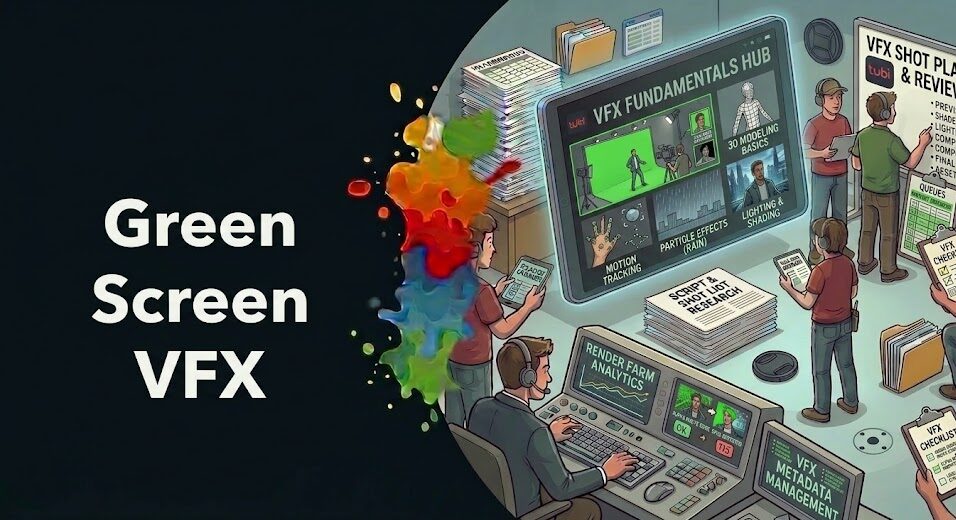
A bad key is visible immediately—and once you see the green fringe on an actor’s hair or the contaminated edge where skin meets a new background, you can’t unsee it. Green screen work has a reputation for being straightforward that it absolutely doesn’t deserve.
The technique is widely used, but green screen keying done to professional standards—clean edges, no spill, preserved hair and fine detail, integration that holds under close viewing—requires a disciplined multi-step process that most tutorials compress or skip entirely.
Studios like PhantomFX, Framestore, DNEG, and ILM pull hundreds of green screen shots per production year, and not one of them relies on a single-pass chroma key preset. The professional approach separates the problem into stages: initial key, edge refinement, spill suppression, and color reconstruction. Each stage addresses different failure modes that compound on each other when not handled separately.
This article covers that full process—across DaVinci Resolve, After Effects, and Nuke—with practical settings and specific techniques for every major keying challenge. If your green screen results have been disappointing, here’s exactly where they’re going wrong and how to fix each problem.
Table of Contents
- Why Most Green Screen Keys Fail (Before You Even Start Keying)
- The Initial Key Pass: Getting a Usable Alpha Without Destroying Detail
- Green Spill Suppression: Removing Screen Contamination from Edges and Skin
- Edge Refinement: Hair, Fine Detail, and Semi-Transparent Regions
- Multi-Pass Keying: Why One Key Never Does Everything
- Fixing Uneven Lighting: The Biggest Source of Difficult Keys
- Tool-by-Tool: Keying in DaVinci Resolve, After Effects, and Nuke
- Color Reconstruction: Replacing Removed Spill with Correct Environmental Light
- FAQ
- Conclusion
Ask VIQI: Which Studios Are Actively Sourcing Green Screen and Compositing Talent Right Now?
VIQI is Vitrina’s AI assistant—trained on 1.6 million titles, 300,000+ companies, and 5 million entertainment professionals. Ask it which productions are in active green screen production phases, what keying tool stacks appear in current VFX briefs, and where compositing artists are being placed globally today.
✔ Included with 200 free credits | ✔ No credit card needed
Why Most Green Screen Keys Fail (Before You Even Start Keying)
Most keying problems aren’t keying problems—they’re production problems that arrived in post. The key is downstream of every decision made on set: screen quality, lighting setup, distance between subject and screen, camera exposure. When those decisions are made without VFX in mind, the compositor inherits footage that no keying algorithm can clean up without manual intervention.
But the reality of professional VFX work is that you’ll routinely deal with footage that wasn’t shot correctly. Not because the production was careless, but because schedule pressure, location constraints, and budget realities mean the ideal green screen setup is frequently impossible. Understanding why your source footage is difficult—before you touch a key slider—is what separates efficient troubleshooting from hour-long parameter-hunting sessions.
The five most common source footage problems:
- Uneven screen illumination: Hotspots and shadow regions in the screen produce different green values across the frame. A chroma key set to sample the mid-range green will over-key in bright regions and under-key in dark regions simultaneously—meaning no single setting produces a clean matte across the whole frame.
- Subject too close to the screen: Proximity causes green light from the screen to reflect directly onto the subject—clothing, skin, and especially hair. This is color contamination (spill) that exists in the subject’s pixels themselves, not just at the edge, and it survives even a perfect key.
- Subject wearing green or carrying semi-transparent items: Green elements on the subject will be keyed out along with the screen. Transparent fabric, glasses, bottles, and fine hair all contain partial transparency that simple keyers handle poorly.
- Camera codec compression: Consumer and prosumer cameras compress chroma information more aggressively than luma (the 4:2:0 and 4:2:2 subsampling issue). Compressed chroma information produces jagged, blocky key edges that can’t be recovered with post processing—they’re a permanent property of the encoded footage.
- Motion blur at the edge: Fast subject movement creates motion blur at the silhouette that’s a blend of screen color and subject color. The keyer sees an intermediate value at every blurred pixel—neither fully transparent nor fully opaque—that requires specific handling to preserve.
Our overview of green screen and special effects for TV production covers the on-set practices that produce more keyable source material—understanding what went wrong on set tells you exactly which post techniques you’ll need to compensate.
The Initial Key Pass: Getting a Usable Alpha Without Destroying Detail
The purpose of the initial key pass is to establish a rough but structurally sound alpha channel—not a finished matte. This distinction is critical. Artists who try to get a perfect key in a single pass inevitably over-tighten the key to eliminate edge contamination, destroying the semi-transparent regions (hair fringe, motion blur, transparent fabric) in the process. You can’t get those back. The correct approach is a conservative first pass that you refine separately.
For the initial pass, your goal is three things: a solid core matte that completely covers opaque regions of the subject (no holes in skin or clothing), clean transparency in the background plate areas (no noise in the fully transparent region), and preserved semi-transparency at the subject’s edges—even if those edges still carry spill at this stage.
The key settings to understand across all tools:
- Clip Black and Clip White (Nuke) / Screen Matte Black and White (After Effects Keylight): These settings contract the matte from the transparent end (removing noise from the background) and expand it from the opaque end (filling holes in the subject). Both should be adjusted conservatively—enough to clean the obvious problems, not enough to compromise the edge.
- Screen Range / Despill Bias: Defines which range of green values the keyer treats as screen. A narrower range produces a cleaner key on well-lit footage; a wider range is necessary on footage with uneven screen illumination but introduces more spill contamination in the result.
- Screen Gain / Color Range: Controls how aggressively the keyer reaches toward adjacent hue values from green. Increasing this helps with subtle spill cases; too much removes natural green in foliage or environmental reflections that should be retained.
One diagnostic practice worth building into your workflow: view the key result as a grayscale matte only, not as a composite. When you’re looking at the composite, your eye is constantly distracted by the background, which prevents you from seeing the actual alpha channel quality clearly. Evaluate the matte in isolation—solid white in subject, solid black in background, soft gray at edges—before you evaluate it in context.
Green Spill Suppression: Removing Screen Contamination from Edges and Skin
Green spill is the contamination of the subject’s pixels by reflected green light from the screen. It exists in the RGB values of the keyed footage independently of the matte—pulling a perfect alpha channel does not remove it. A subject who was photographed too close to a bright green screen will have a green color cast in their hair, a green tint on the side of their face closest to the screen, and green-contaminated clothing. All of this survives the key and shows up in your composite as a visible artifact.
Basic despill is simple: reduce the green channel in areas where it’s disproportionately elevated relative to red and blue. Most tools provide an automatic despill operation that does this reasonably well for the obvious fringe region. But basic despill has a known failure mode—it removes green across the subject globally, which desaturates green elements that legitimately belong (a green shirt, outdoor foliage reflected in glasses, natural skin tones with a warm green component).
The professional approach uses matte-controlled despill: applying the strongest despill operation only to the edge region (where spill is heaviest) while applying a much gentler correction to the core subject. This preserves legitimate green in the subject’s interior while eliminating the fringe contamination. In Nuke, this is built into the IBKColour and Keylight nodes via their separate edge processing parameters. In DaVinci Resolve’s Qualifier, the edge softness controls allow similar region-specific correction.
For severe spill on skin—common when a subject was lit from behind with a bright screen—a targeted HSL correction on the specific green range in skin tones is more precise than a global despill operation. Measure the contaminated skin tones on a vectorscope, identify the hue and saturation range being affected, and correct only that range rather than applying a broad-strokes despill that affects the whole image.
Find VFX Studios Actively Producing Green Screen and Compositing Work Right Now
Trusted by Netflix, Warner Bros, and Paramount. Join 300,000+ companies tracking the global entertainment supply chain on Vitrina.
✔ 200 free credits | ✔ No credit card required | ✔ Full platform access
Edge Refinement: Hair, Fine Detail, and Semi-Transparent Regions
Hair is the hardest green screen problem—and it’s the one that most definitively separates amateur from professional results. Individual strands of hair are semi-transparent at the edges, often motion-blurred, frequently lit to create a separation halo that contains a blend of screen and subject color. A standard chroma key will treat most hair fringe as screen color and remove it, leaving a hard-cut edge where the actor’s outline used to be feathered naturally.
Professional hair edge work uses a combination of:
- Screen matte expansion / edge softness: Softening the matte edge to recover some of the semi-transparent fringe without extending into the screen background. Most professional keyers have dedicated “screen matte” or “edge softness” controls separate from the main matte; these allow the edge to be extended and softened independently of the core matte, which must remain hard and solid.
- Luminance-based holdout mattes: When key-light separation creates a bright halo around a dark-haired subject, a luminance matte built from the bright halo region can be used to hold out (preserve) that semi-transparent rim from the chroma key. The halo is bright enough to be isolated from the darker hair and screen background by a threshold-based luminance selection.
- Supplementary roto for problem areas: When automated keying genuinely cannot recover a specific region—typically a section of hair against a blown-out or inconsistently lit screen region—targeted rotoscoping replaces or supplements the keyed matte in that area. This is not a failure of the keying process; it’s a standard professional technique used on every major production.
The same logic applies to other fine detail: fabric with semi-transparency (chiffon, lace, voile), glasses frames, thin foreground elements. Each needs its own handling strategy rather than a global edge adjustment that will over-correct some regions while under-correcting others.

Your AI Assistant, Agent, and Analyst for the Business of Entertainment
VIQI AI helps you plan content acquisitions, raise production financing, and find and connect with the right partners worldwide.
- List the top commissioners at the BBC
- List the post-production and VFX decision-makers at Netflix
- List the development leaders at Sony Pictures
- List the scripted programming heads at HBO
- Find active co-producers and financiers for scripted projects
- Find equity and gap financing companies in North America
- Find top film financiers in Europe
- Find production houses that can co-produce or finance unscripted series
- Who is backing animation projects in Europe right now
- Who is Netflix’s top production partners for Sports Docs
- Who is Commissioning factual content in the NORDICS
- Who is acquiring unscripted formats for the North American market
- Show me recent drama projects available for pre-buy
- Show me Japanese Anime Distributors
- Show me true-crime buyers from Asia
- Show me documentary pre-buyers
- I am looking for production partners for a YA drama set in Brazil
- I am looking for producers with proven track record in mid-budget features
- I am looking for Turkish distributors with successful international sales
- I am looking for OTT platforms actively acquiring finished series for the LATAM region
- I am seeking localization companies offer subtitling services in multiple Asian languages
- I am seeking partners in animation production for children's content
- I am seeking USA based post-production companies with sound facilities
- I am seeking VFX partners to composite background images and AI generated content
Multi-Pass Keying: Why One Key Never Does Everything
The most important conceptual shift in professional green screen work is understanding that a single key is a starting point. A production-quality matte is assembled from multiple passes—each addressing a specific zone or problem—combined into a final matte using matte merge operations.
The standard multi-pass approach:
- Core matte: A tightly keyed pass that produces a solid, hard-edged result for the subject’s interior. Settings are aggressive enough to close all holes and eliminate all screen color from the core region—but this pass is expected to have bad edges. That’s fine; the edges come from elsewhere.
- Edge matte: A conservatively keyed pass focused on preserving the semi-transparent edge region. Settings are softer, sampling a wider color range to retain the intermediate transparency values in hair and fine detail. The edge matte will be contaminated in its core region—again, fine, because the core comes from pass one.
- Problem region passes: Any area that neither of the above handles cleanly gets its own dedicated pass—or a roto matte—targeted at that specific issue. Uneven screen regions, proximity spill on one side of the subject, semi-transparent fabric areas.
- Matte merge: Combine the passes using a Matte Merge or Screen operation in your compositing application, using the core matte as the base and the edge matte to extend the transparency handling. Problem region passes are merged in last.
Bejoy Arputharaj, Founder & CEO of PhantomFX—which delivers VFX for Hollywood and Netflix productions—discusses how PhantomFX approaches visual effects production with the discipline and workflow rigor that makes high-volume deliveries possible. Green screen compositing at the volume PhantomFX operates requires exactly this kind of systematized multi-pass approach.
Bejoy Arputharaj (Founder & CEO, PhantomFX) on CGI mastery, AI integration, and delivering VFX for Hollywood and Netflix:
Fixing Uneven Lighting: The Biggest Source of Difficult Keys
Uneven screen illumination is the root cause of more difficult keys than any other single factor—and it’s the one most often dismissed as something post should “just fix.” It can’t be fully fixed in post. But it can be managed with techniques that significantly reduce the damage before the chroma key pass runs.
The approach: screen normalization. Before keying, process a frame of the footage that contains only the screen with no subject present (an empty screen frame, or a frame from before or after the take if the subject exits frame). Sample that frame and use it to create a correction that makes the screen luminance and chrominance uniform across the entire image area. Apply that correction to all frames before keying.
In Nuke, the IBKColour node does this process automatically when given a clean plate (the empty screen frame). It produces a normalized version of the footage that the IBKGizmo or Keylight can then key cleanly because the screen color is now consistent across the frame. This is why professional productions always capture clean plate frames—a few seconds of empty screen before or after the take, with identical lighting and camera settings.
In DaVinci Resolve, a clean plate approach requires some manual Node tree work—but the Qualifier’s color range sampling combined with a Parallel Node correction can approximate normalization without the dedicated Nuke tooling. In After Effects with Keylight, the Clean Plate input serves the same function directly.
If you don’t have a clean plate—a common situation on productions that didn’t plan for VFX—you can construct a synthetic one by painting a frame using the screen color sampled from non-subject areas of the footage, blurred to remove texture. It’s imprecise, but it’s substantially better than keying unnormalized footage and trying to compensate in matte operations afterward.
Tool-by-Tool: Keying in DaVinci Resolve, After Effects, and Nuke
DaVinci Resolve
Best for: Color-correction-integrated keying on mid-tier productions; accessible multi-pass workflow at no additional cost. The Qualifier tool provides 3D keying (sampling in HSL or YUV color space), matte finesse controls, and the ability to build complex qualifications from multiple sample points. The Delta Keyer in Fusion (built into DaVinci) is a dedicated chroma key tool with clean plate support and matte refinement controls comparable to professional tools.
DaVinci’s advantage is its native integration of keying within a color grading workflow—you can normalize the screen, key, despill, and color-correct the output in a single node tree without round-tripping between applications. For productions that are grading in DaVinci anyway, this is a significant pipeline efficiency. Its limitation is that the Qualifier’s edge handling is less sophisticated than Keylight’s on difficult hair footage—expect to supplement with roto for problem edges.
After Effects
Best for: Motion graphics-integrated compositing, mid-budget episodic and commercial work, productions where the full VFX pipeline is Adobe-based. Keylight 1.2 (bundled with After Effects) is the primary keying tool—originally developed by The Foundry, it remains highly capable on well-lit footage and provides dedicated controls for screen matte, foreground color correction, and spill suppression in a single interface.
The standard professional workflow in After Effects: run Keylight for the initial key and basic despill, then add a second Keylight pass with different settings for the edge region (or use the Key Cleaner and Advanced Spill Suppressor effects in sequence). For difficult footage, Mocha Pro’s remove module handles edge replacement that Keylight can’t address—it’s the standard add-on when After Effects keying alone isn’t sufficient.
Nuke
Best for: Feature and high-end episodic production, any work requiring multi-pass matte assembly, shots where the key needs to interact with other VFX elements in the same node tree. Nuke provides three dedicated keying toolsets: IBKGizmo (the most powerful, using a clean plate for screen normalization), Keylight (the same algorithm as the After Effects version, but node-based and more flexible), and the Primatte node (trimap-based keying suited to specific types of difficult footage).
Nuke’s keying superiority comes from pipeline integration, not necessarily from any single tool being dramatically better. In a node-based tree, you can route the keyed result directly into light wrap, color match, and integration operations without exporting and re-importing. The multi-pass matte assembly described above is native to how node compositing works—each pass is a separate branch that merges into the final output. This architecture makes complex keying problems tractable in ways that layer-based tools make genuinely awkward.
According to Variety, productions that invest in VFX supervision from day one—including clean plate capture and technical camera data—consistently report faster post schedules and fewer compositing re-reviews. The on-set decisions that make keying easier are worth more than any post-production technique applied to difficult source material.
Color Reconstruction: Replacing Removed Spill with Correct Environmental Light
This is the final step that most tutorials skip—and it’s what separates a despilled result that looks plasticky and artificially clean from an integrated result that feels like the subject actually exists in the new environment.
When you remove green spill from a subject’s hair edge, you don’t just remove a contaminant—you remove color information that was encoding something real: the fact that the subject was surrounded by a colored light source. In the original green screen shot, the green was wrong (it was screen bounce, not the new environment). But the new environment also has a color—it has light that would reflect into the subject’s edges from that direction. That reflected environmental light needs to replace the removed screen spill, or the edge will look like it was cut out and pasted rather than existing in a real space.
The technique: extract the dominant color of the new background in the region adjacent to each edge, and apply a soft tinted glow to the corresponding edge of the keyed subject. This is related to light wrapping (covered in our guide to VFX production from script to screen) but applied specifically to the spill replacement function rather than general environmental integration.
In practice: after despill, apply a heavily blurred version of the new background plate to the subject’s edge region using a Screen or Add blend mode with a soft matte. The result is that the edge takes on the color temperature of the new environment—warm from a sunset background, cool from an overcast exterior, whatever the new scene demands. The removed green is replaced not with nothing, but with something correct. That’s what makes the composite read as real.
Our coverage of AI-enhanced VFX techniques covers how machine learning tools are beginning to automate parts of this color reconstruction workflow—but the perceptual judgment about whether the reconstructed edge color is correct for the specific scene remains human-dependent in professional production contexts.
Track 159,223 Productions—Including Which Ones Are in Active VFX and Green Screen Phases
Trusted by Netflix, Warner Bros, Paramount, and Google TV. Access 3 million verified entertainment professionals. Know what’s moving through the VFX pipeline before the brief hits the market.
✔ 200 free credits | ✔ No credit card required | ✔ Cancel anytime
Frequently Asked Questions
What is the most effective green screen keying technique for professional results?
The most effective approach is multi-pass keying—generating a separate key pass for the core matte (hard, solid, no holes) and a separate pass for the edge region (soft, preserving semi-transparency in hair and fine detail), then merging them using matte merge operations in your compositing application. A single-pass key optimized for one requirement always compromises another. Professional studios including PhantomFX, DNEG, and Framestore use multi-pass matte assembly as standard practice on green screen compositing.
How do I remove green spill from hair without destroying skin tone?
Use matte-controlled despill—apply aggressive despill only to the edge region of the matte (where spill is heaviest) and a gentler correction to the subject’s interior. This avoids the global despill problem where reducing green throughout the image desaturates legitimate green elements and shifts skin tones. For severe skin contamination, use a targeted HSL qualifier to isolate the specific green hue range affected and correct only that range, leaving unaffected skin values intact.
Why is my green screen key leaving a hard edge around the subject’s hair?
A hard hair edge means the keyer is treating the semi-transparent hair fringe as screen color and removing it. Fix this by using a separate edge matte pass with softer, more conservative settings than your core matte—then merge the two mattes. Additionally, check whether a luminance holdout matte can recover the bright hair halo from your key-lit footage. If automated keying can’t recover the hair satisfactorily, supplementary rotoscoping of the problem region is standard professional practice and not a shortcut—it’s expected at all major studios.
What is screen normalization and why does it help with uneven green screens?
Screen normalization uses a clean plate (a frame of the empty screen with no subject) to create a correction that makes the screen color consistent across the entire image before the chroma key runs. Uneven lighting produces different green values in different screen regions, which means no single key setting produces a clean matte everywhere simultaneously. After normalization, the screen reads as uniform green regardless of the original lighting inconsistencies, allowing the keyer to operate on consistent input. In Nuke, IBKColour automates this; in After Effects, Keylight’s Clean Plate input performs the same function.
What is the best green screen keying tool in DaVinci Resolve?
DaVinci Resolve offers two primary keying tools. The Qualifier in the Color page handles chroma keying with HSL, YUV, and luminance sampling—it’s well-suited for color-correction-integrated workflows and allows the key to feed directly into a grade. The Delta Keyer in the Fusion page is a dedicated chroma key tool with clean plate support and matte refinement comparable to professional tools. For difficult hair footage, the Delta Keyer’s edge handling is stronger than the Qualifier’s. Both tools support multi-pass workflows within DaVinci’s node-based structure.
Why does green spill survive even after pulling a clean key?
Because spill and the key matte are separate problems. The chroma key creates an alpha channel (transparency map) that determines what’s visible and what isn’t. But green spill exists in the RGB values of the subject’s pixels themselves—it’s the green light reflected from the screen that’s baked into the color of skin, hair, and clothing. Pulling the key removes the background; it doesn’t change the subject’s pixel colors. Spill removal is a separate color correction operation that must be applied to the keyed subject independently of the matte generation process.
How does camera codec compression affect green screen keying?
Most consumer and prosumer cameras use chroma subsampling (4:2:0 or 4:2:2) that compresses color information more aggressively than luminance. Since chroma keying operates on color channel data, compressed chroma produces blocky, jagged key edges with reduced precision—artifacts baked permanently into the encoded footage that post-processing can’t recover. For any production planning significant green screen work, shooting in 4:4:4 color sampling, RAW, or at minimum 4:2:2 at high bitrates is the correct mitigation. If you’re working with compressed 4:2:0 footage, accept that edge quality will be limited and plan for additional roto work to supplement the key.
What is color reconstruction after despill and why does it matter?
Color reconstruction replaces the removed green spill at the subject’s edges with the correct reflected light color from the new background environment. When green spill is removed, the edge doesn’t just lose contamination—it loses color information that represented a real light interaction. In the new scene, the background would cast its own ambient color onto the subject’s edges. Reconstructing this—by applying a blurred, tinted version of the new background to the keyed subject’s edge region using a Screen or Add blend—is what makes the composite read as physically integrated rather than cut-and-pasted. It’s the final step that transforms a technically clean key into a believable composite.
Conclusion: A Clean Key Is a System, Not a Single Setting
The green screen keying techniques that eliminate spill and deliver clean edges are not about finding the right slider value in a single pass. They’re a staged process: source problem diagnosis, screen normalization, multi-pass matte assembly, matte-controlled despill, edge refinement with supplementary roto where needed, and color reconstruction that replaces removed spill with environmentally correct light. Each stage addresses a different failure mode. All of them together produce results that hold under close viewing—at the standard Netflix, Warner Bros, and every major production pipeline demands.
Key Takeaways:
- Multi-pass keying is the professional standard: Core matte and edge matte generated separately, merged into a final result—used by PhantomFX, DNEG, Framestore, and every major VFX studio that delivers green screen work at volume.
- Spill and the matte are separate problems: The chroma key creates transparency; despill corrects RGB values in the subject’s pixels. Both must be addressed independently. A perfect key that skips despill leaves a visibly contaminated result.
- Screen normalization makes every key easier: A clean plate frame (empty screen, identical lighting) used for screen normalization converts an inconsistently lit screen into consistent keying input. Productions that don’t capture clean plates create avoidable post problems.
- Codec quality determines edge quality ceiling: 4:2:0 chroma subsampling permanently limits key edge precision—it’s not recoverable in post. Productions planning significant green screen work should shoot at minimum 4:2:2 at high bitrate or RAW.
- Color reconstruction completes the integration: Replacing removed spill with the ambient color of the new background environment is the step that makes a technically clean key into a compositionally integrated one. Skip it and the edge looks cut out; apply it correctly and the subject belongs in the new scene.
Build this workflow as a repeatable system rather than re-solving the same problems on each shot. The compositors delivering clean keys consistently at studios like PhantomFX aren’t faster because they found a better preset—they’re faster because they have a methodology that handles every problem category systematically. That’s what this process gives you.
Discover VFX Studios Sourcing Green Screen Compositing Talent and Services Right Now
Trusted by Netflix, Warner Bros, Paramount, and Google TV. Track 1.6 million+ projects. Access 3 million verified executives. Ask VIQI which productions are in active green screen phases today.
✔ 200 free credits | ✔ No credit card required | ✔ Cancel anytime
Need direct introductions to VFX studios sourcing keying and compositing services? Explore Concierge Service →